Video Preparation
FloSync works with most video formats right out of the box. If you're using network sync or running a sync-critical installation, video format choices can make a noticeable difference.
This guide explains what affects sync performance and how to prepare your videos for the best results.
Do I Need to Prepare My Videos?
For most users, the answer is no. FloSync handles standard video files well, and you may never notice any sync issues.
Consider preparing your videos if:
- You're using network sync across multiple computers
- You're running a professional installation where tight visual alignment matters
- You've noticed occasional stutters or jumps during synchronized playback
- You're playing the same video on multiple screens and noticing drift
If you're just playing different content on different screens (Independent mode), video preparation isn't necessary.
Understanding the Basics
Some formats are easier for multi-computer playback than others. Choosing a sync-friendly format can improve consistency, especially over long sessions.
Why Some Videos Sync Better Than Others
Videos are compressed in two ways:
All-Intra (Sync-Friendly)
- Built for consistent playback across multiple machines
- Helps keep long sessions visually aligned
- Files are larger, but results are more stable
Inter-Frame (Streaming-Friendly)
- Optimized for smaller file sizes
- Great for general playback and web delivery
- Can be less consistent in sync-critical multi-computer setups
Most videos from phones, cameras, and streaming services use streaming-friendly formats. These are excellent for everyday viewing, but dedicated sync-friendly formats are often better for large synchronized installations.
Recommended Formats
Our recommendations depend on your platform:
| Platform | Recommended | If File Size Is an Issue |
|---|---|---|
| macOS | ProRes LT | H.264 All-Intra |
| Windows | DNxHD | H.264 All-Intra |
ProRes LT and DNxHD are strong choices for sync-critical deployments and long-running playback.
H.264 All-Intra is a good alternative if storage is limited. It offers similar sync reliability in a smaller file, with universal playback support.
Other Formats
The sample files and transcoding commands below also include ProRes 422, DNxHR HQ, and MJPEG for reference. These are not recommended for most users — they produce very large files without meaningful sync or quality benefits over the recommended formats.
Sample Files for Testing
We provide sample videos encoded in various formats so you can test sync performance on your own hardware before committing to a format for your project.
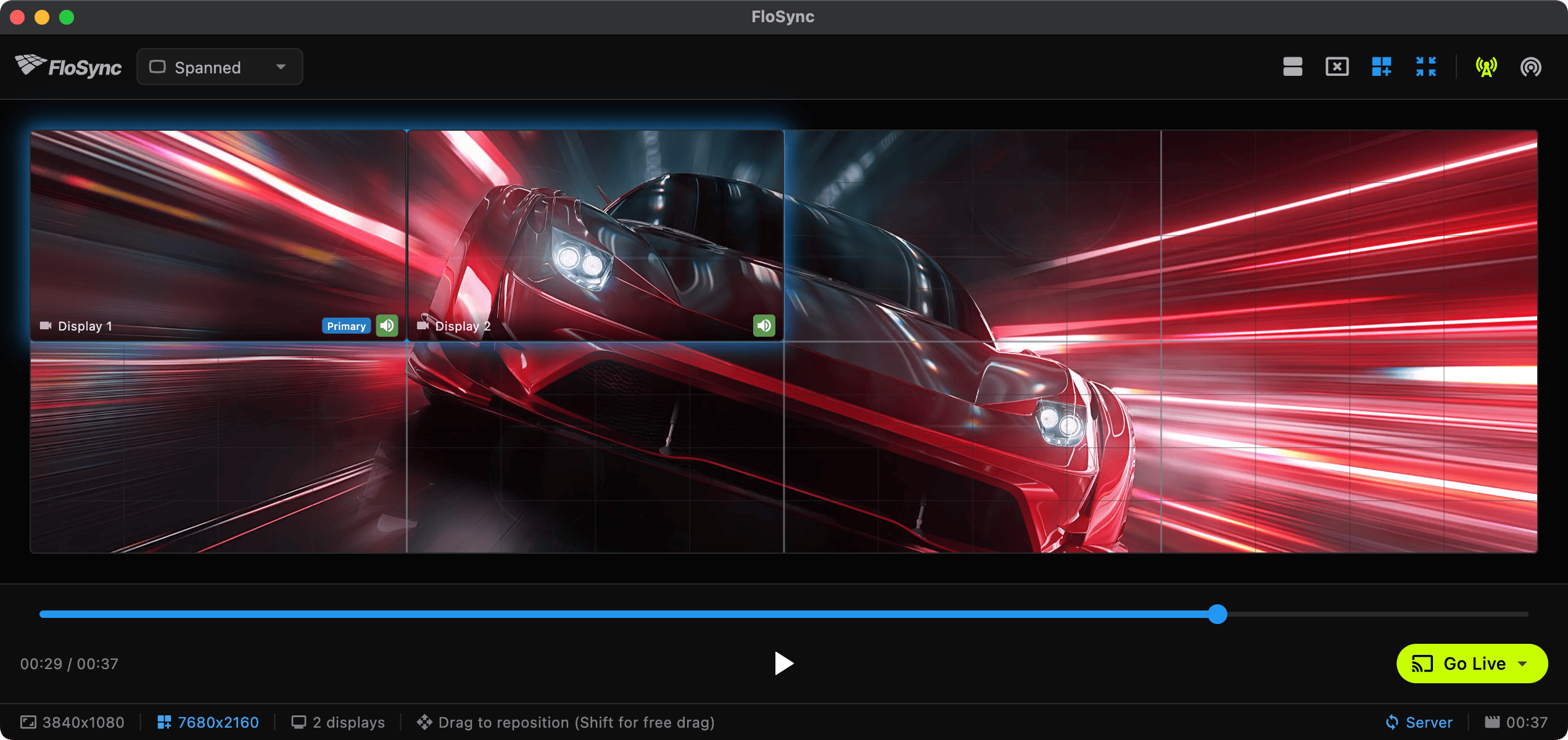
Download Sample Videos
All samples are the same 37-second 30fps video (sports car footage) encoded in different formats:
Recommended Formats
| Format | 4K | 1080p | Video Quality | Audio |
|---|---|---|---|---|
| H.264 All-Intra | 222 MB | 91 MB | 50 Mbps / 20 Mbps | AAC 256k |
| ProRes LT | 1.5 GB | 414 MB | Profile 1 (LT) | PCM 16-bit |
| DNxHR HQ | 3.9 GB | 988 MB | DNxHR HQ | PCM 16-bit |
Other Formats (For Reference)
These are included for illustration. Standard streaming formats are shown for comparison, and additional professional formats are available if you have specific needs.
| Format | 4K | 1080p | Video Quality | Audio |
|---|---|---|---|---|
| ProRes 422 | 1.9 GB | 584 MB | Profile 2 (422) | PCM 16-bit |
| MJPEG | 632 MB | 251 MB | Quality 2 | PCM 16-bit |
| H.264 HQ | 227 MB | 88 MB | CRF 18 | AAC 256k |
| H.264 Web | 65 MB | 22 MB | CRF 23 | AAC 128k |
| HEVC HQ | 102 MB | 45 MB | CRF 20 | AAC 256k |
| HEVC Web | 45 MB | 14 MB | CRF 26 | AAC 128k |
How to Test
- Download a recommended sample (ProRes LT for macOS, DNxHR HQ for Windows)
- Download an H.264 All-Intra sample for comparison
- Set up network sync between two computers
- Compare sync stability between the formats
- Choose the format that meets your quality and storage requirements
Transcoding Your Videos
The easiest way to transcode is the built-in Transcode Panel — open it from the View menu or toolbar and convert your files without leaving FloSync. It supports H.264 All-Intra, ProRes LT, and DNxHR HQ with hardware acceleration and smart audio handling. See the Transcoding guide for details.
If you prefer to transcode manually or need more control over encoding settings, FFmpeg is a free, powerful tool that works on Mac, Windows, and Linux.
DNxHD / DNxHR (Recommended for Windows)
Avid's professional codec. DNxHD is our top recommendation for Windows users. Use DNxHR HQ for 4K content.
ffmpeg -i input.mp4 \
  -c:v dnxhd -profile:v dnxhr_hq -pix_fmt yuv422p \
  -c:a pcm_s16le \
  -y output.mov
ProRes (Recommended for macOS)
Excellent quality with fast seeking. Native support on macOS. ProRes LT is our top recommendation for Mac users.
# ProRes LT (smaller files, great quality)
ffmpeg -i input.mp4 \
  -c:v prores_ks -profile:v 1 -pix_fmt yuv422p10le \
  -c:a pcm_s16le \
  -y output.mov

# ProRes 422 (larger files, higher quality)
ffmpeg -i input.mp4 \
  -c:v prores_ks -profile:v 2 -pix_fmt yuv422p10le \
  -c:a pcm_s16le \
  -y output.mov
H.264 All-Intra
Good balance of file size and sync performance. Works everywhere. A solid choice if storage is limited.
ffmpeg -i input.mp4 \
  -c:v libx264 -preset slow -profile:v high -level 5.2 \
  -g 1 -keyint_min 1 -sc_threshold 0 \
  -b:v 50000k -maxrate 50000k -bufsize 100000k \
  -pix_fmt yuv420p \
  -c:a aac -b:a 256k \
  -y output.mp4
For 1080p content, you can reduce the bitrate:
ffmpeg -i input.mp4 \
  -vf "scale=1920:1080" \
  -c:v libx264 -preset slow -profile:v high \
  -g 1 -keyint_min 1 -sc_threshold 0 \
  -b:v 20000k -maxrate 20000k -bufsize 40000k \
  -pix_fmt yuv420p \
  -c:a aac -b:a 256k \
  -y output-1080p.mp4
File Size Expectations
Sync-optimized formats produce larger files. Here's what to expect for a typical 1-minute video:
| Format | 4K | 1080p |
|---|---|---|
| DNxHR HQ | ~6 GB | ~1.6 GB |
| ProRes 422 | ~3 GB | ~950 MB |
| ProRes LT | ~2.4 GB | ~650 MB |
| H.264 All-Intra | ~350 MB | ~150 MB |
| H.264 Web (streaming) | ~100 MB | ~30 MB |
The larger file sizes are the tradeoff for consistent, reliable sync. Plan your storage accordingly.
Storage and Playback Tips
Use Local Storage
For best performance:
- Store videos on local SSD storage, not network drives
- Avoid USB 2.0 drives for high-bitrate formats like ProRes or DNxHR
- USB 3.0, Thunderbolt, or internal drives work well
Match Formats Across Computers
When using network sync:
- Use the same video file on all computers
- Don't mix formats (e.g., ProRes on one, H.264 on another)
- Copy files rather than streaming from a network share
Consider Your Hardware
- 4K ProRes/DNxHR requires capable hardware and fast storage
- If playback stutters, try 1080p or H.264 All-Intra instead
- Test before your event or installation
Quick Reference
On macOS? → Use ProRes LT for the best sync and quality
On Windows? → Use DNxHD (or DNxHR HQ for 4K content)
Need smaller files? → Use H.264 All-Intra — good sync reliability with smaller file sizes
Want to test before transcoding? → Download our sample files and compare
Related
- Transcoding — Convert videos to sync-optimized formats directly in FloSync
- Network Sync — Setting up multi-computer sync
- Troubleshooting — Common issues and solutions
- FAQ — Frequently asked questions