Display Modes
Use Independent when each screen shows something different, Mirrored when every screen shows the same thing, and Spanned when one picture stretches across all of them.
Overview
| Mode | Best For | Behavior |
|---|---|---|
| Independent | Different content per screen | Each screen operates separately |
| Mirrored | Same content everywhere | All screens show identical content in sync |
| Spanned | Video walls | Content stretches across all screens as one canvas |
Default: FloSync starts new installations in Independent mode. Switch anytime using the mode dropdown.
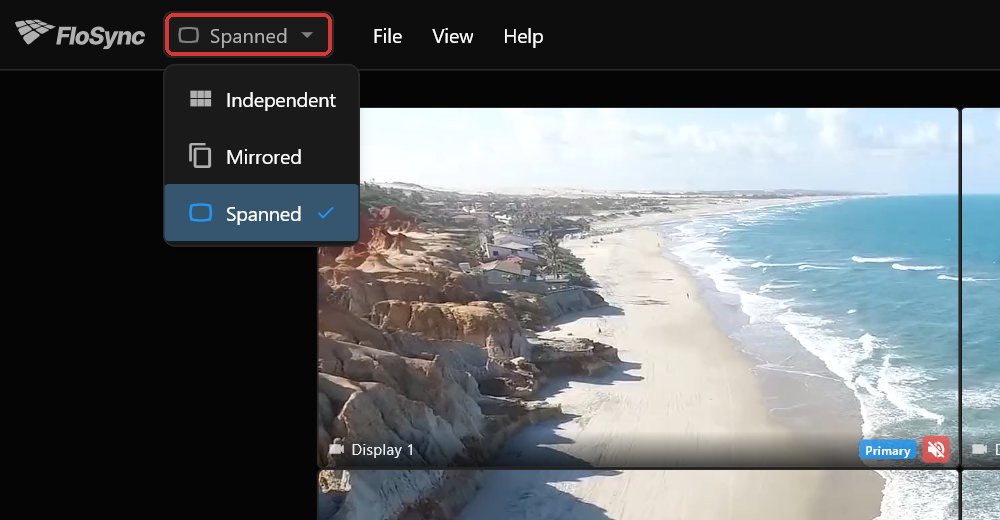 The Mode dropdown, at the left of the top bar.
Content Type Behavior by Mode
Different content types behave differently in each display mode:
| Content Type | Independent | Mirrored | Spanned |
|---|---|---|---|
| Videos | Different video per screen | Same video, synced | Video cropped per screen |
| Images | Different image per screen | Same image on all | Image cropped per screen |
| Web Pages | Different page per screen | Same page on all | Same page on all (not cropped) |
Note: Web pages cannot be spanned across screens. In Spanned mode, web pages show the same content on all screens (like Mirrored mode).
Independent Mode
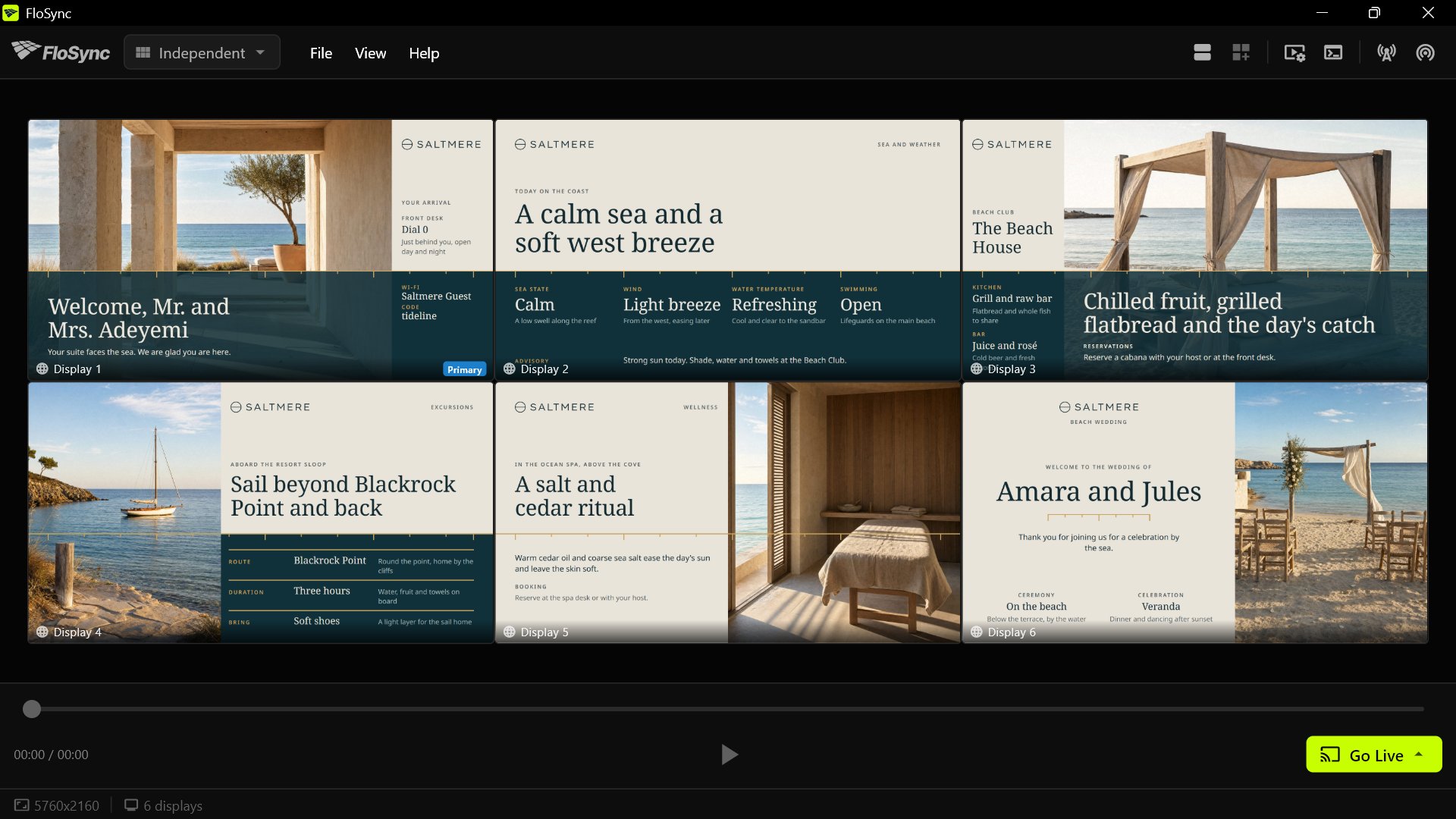 Independent mode, with a different design on each of six screens.
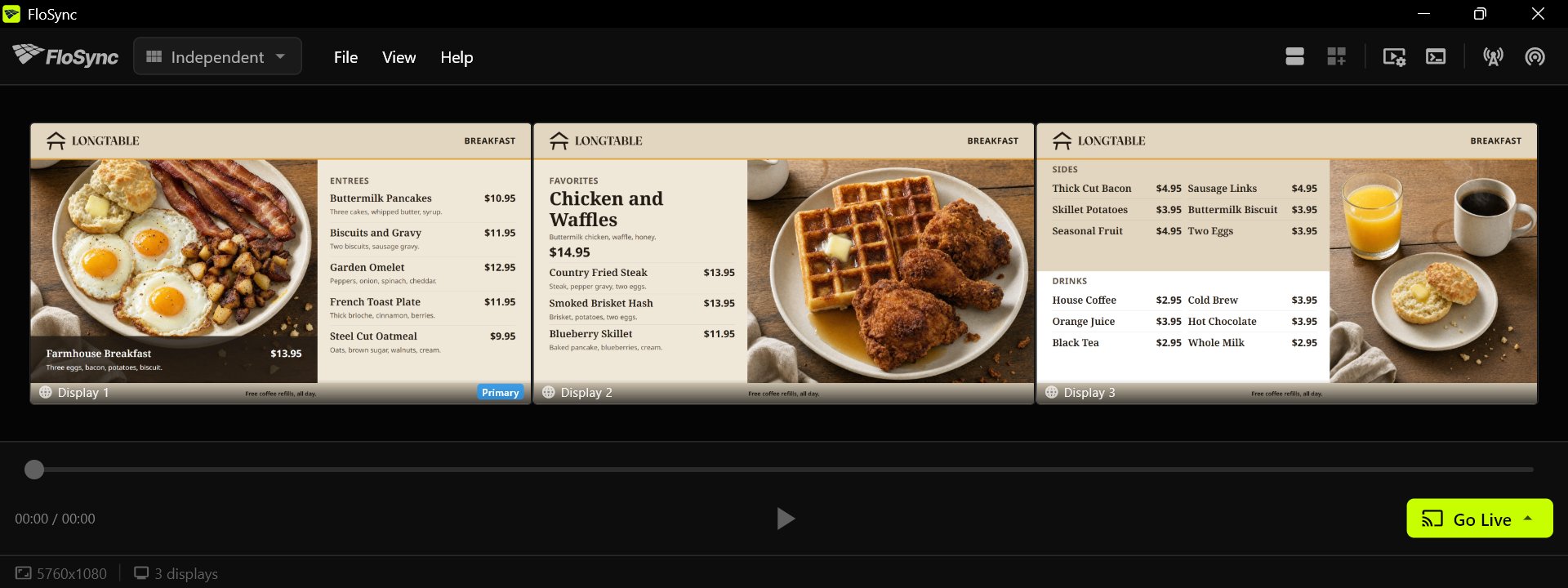 Independent mode, with a different page on each of three screens.
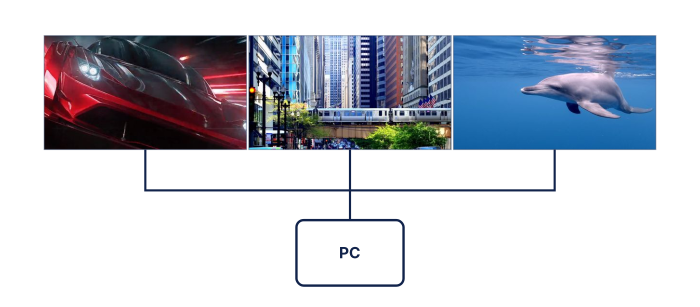 One computer, three displays. Each screen shows something different.
What It Does
In Independent mode, each screen operates as its own separate player. You can:
- Load different content on different screens (videos, images, or web pages)
- Control audio independently for each screen (videos only)
- Have completely different content on each screen
- All screens share unified playback controls (play/pause affects all videos)
When to Use It
- Digital menu boards where each screen shows different categories
- Retail setups with varied promotional content
- Dashboards with different web pages per screen
- Any scenario where screens should show different content
How It Works
- Select Independent from the mode dropdown
- Each screen box in the control panel can have its own content
- Drag videos or images onto specific screen boxes to load content
- Right-click to load web pages or HTML files
- Click the speaker icon on each screen to toggle its audio (videos only)
- Use Play/Pause to control all video content together
Audio Behavior
- Each screen has its own audio toggle (speaker icon) for videos
- Audio is disabled by default when loading videos
- Enable audio on screens where you want sound
- Multiple screens can play audio simultaneously
Mirrored Mode
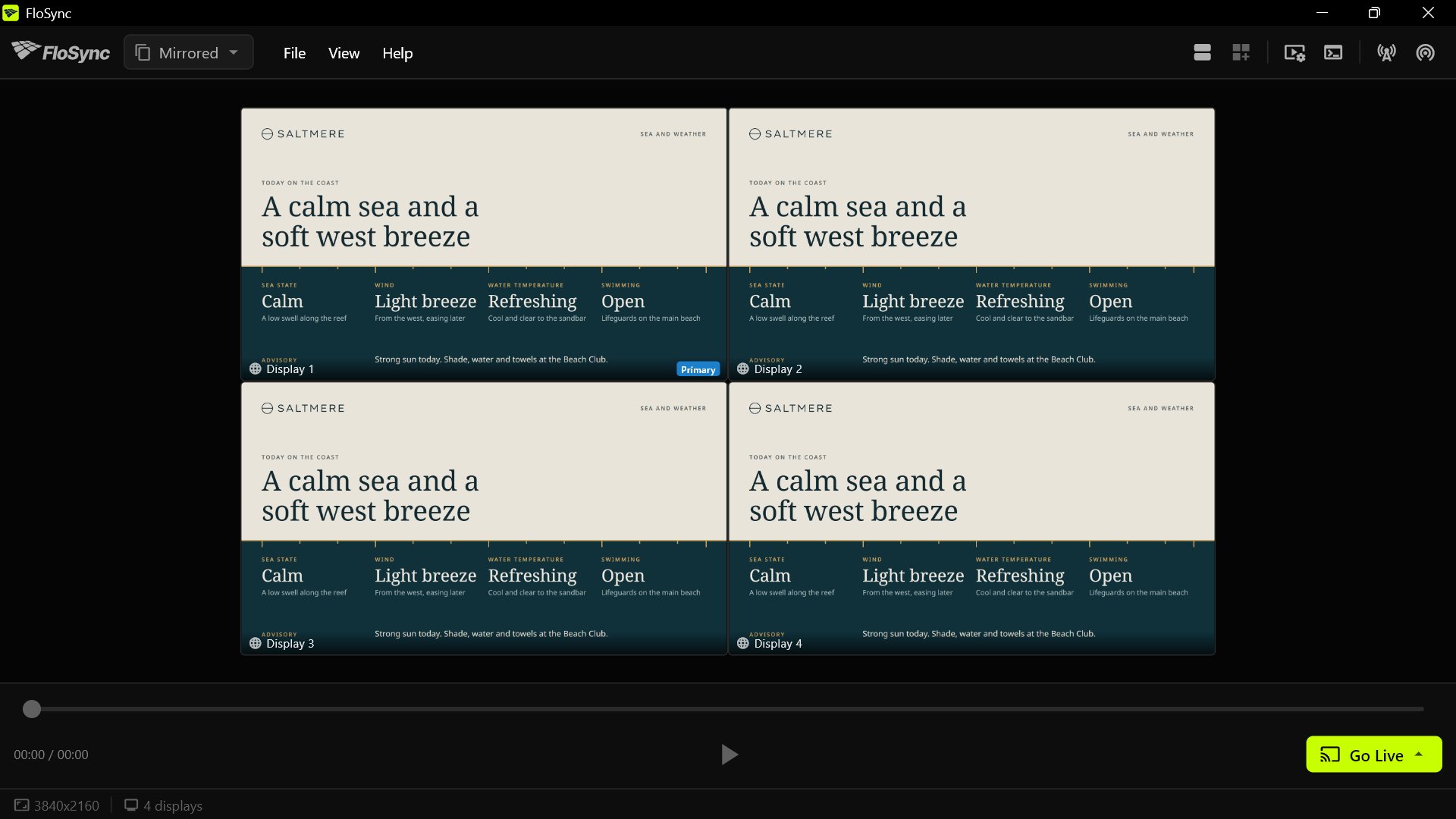 Mirrored mode, with the same design on all four screens.
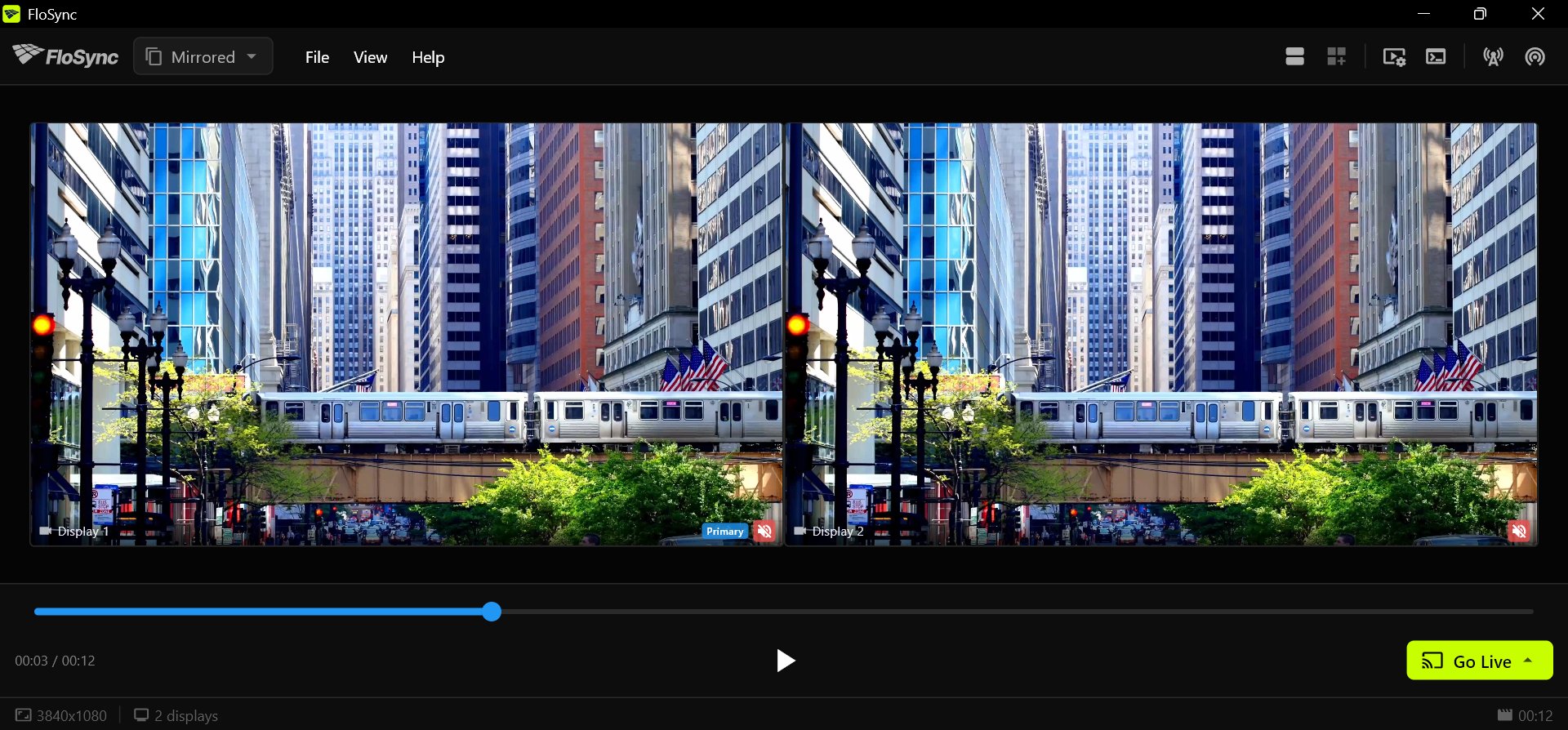 Mirrored mode, with the same frame on both screens.
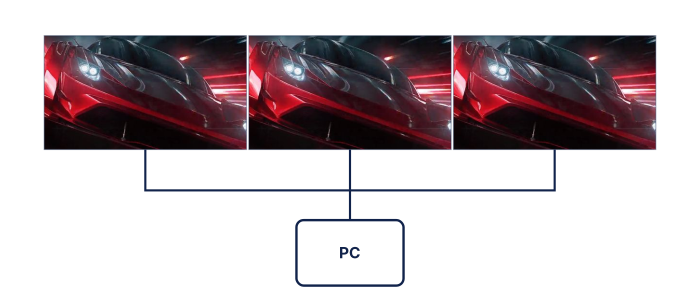 One computer, two displays, the same video on both.
What It Does
In Mirrored mode, all screens show exactly the same content, visually aligned. When you:
- Load content, it loads on all screens
- Press play (videos), all screens play together
- Scrub the timeline (videos), all screens move to the same position
When to Use It
- Retail environments where all screens should show the same promotion
- Waiting rooms or lobbies with multiple viewing angles
- Events where viewers might see different screens from different positions
- Backup/redundancy setups
How It Works
- Select Mirrored from the mode dropdown
- Load content on any screen - it automatically loads on all screens
- Use the playback controls - they affect all screens simultaneously (videos only)
- All screens stay in sync automatically
Synchronization
FloSync automatically keeps playback aligned across screens (videos only) while prioritizing smooth viewing.
Audio Behavior
- Audio plays from the primary screen only to prevent echo (videos only)
- Secondary screens are automatically muted
- Toggling audio updates the speaker icon on every screen box, but only the primary screen's audio changes
Spanned Mode
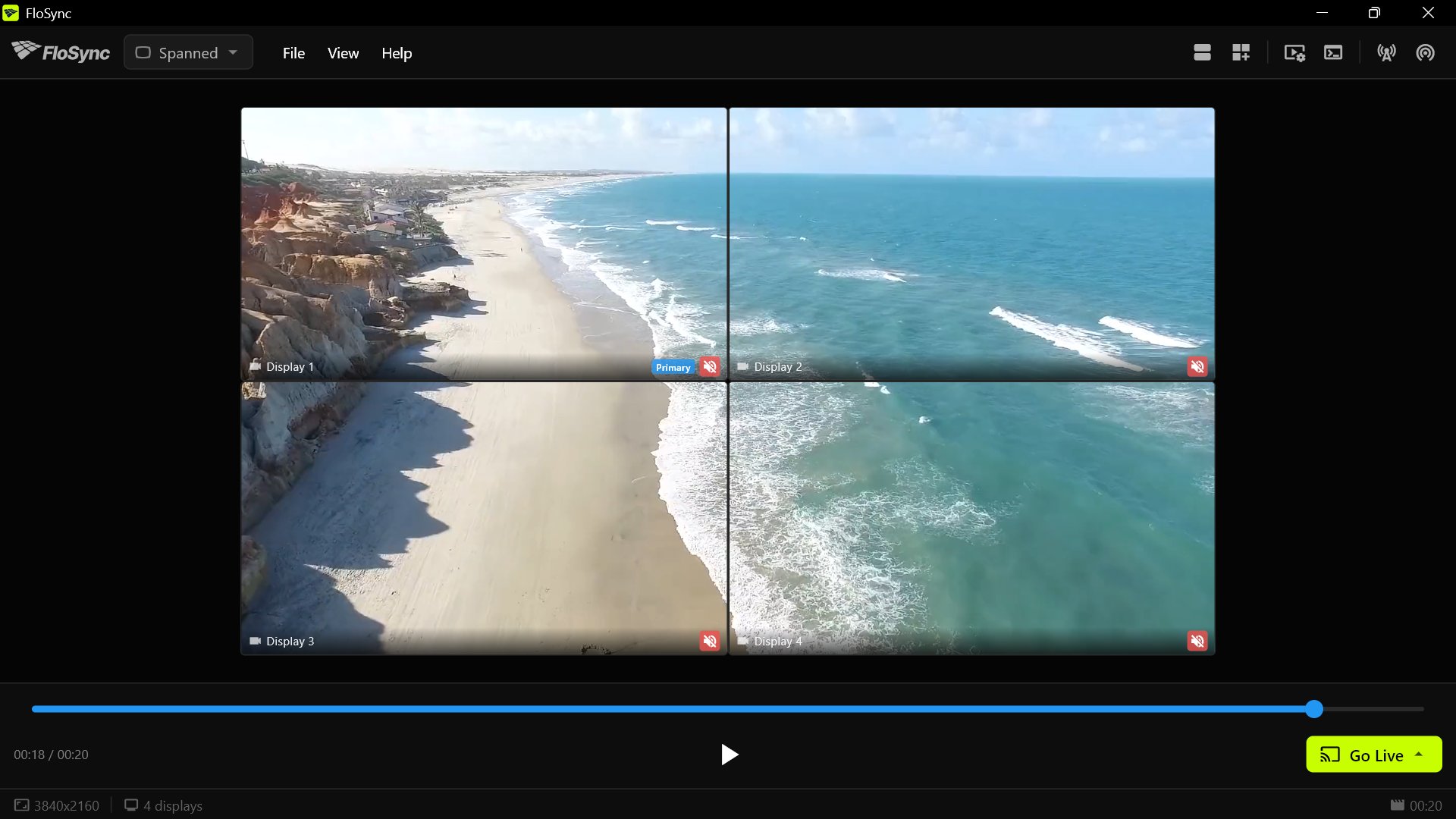 Spanned mode, with one video across four screens.
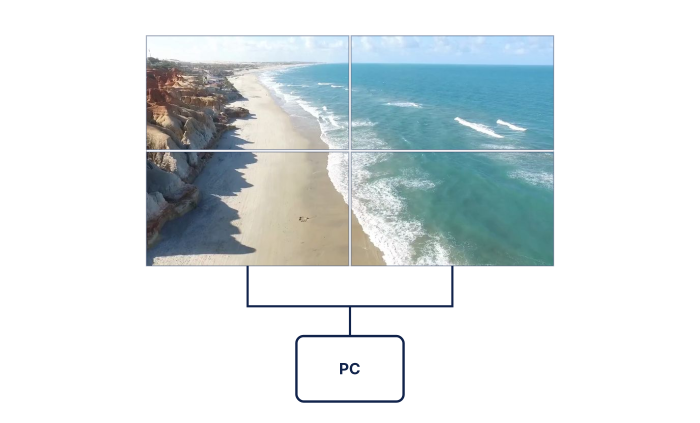 One computer, four displays in a grid. Each screen shows its own quarter of one video.
What It Does
In Spanned mode, your content stretches across all connected screens as if they were one large screen. Each screen shows a portion of the total image.
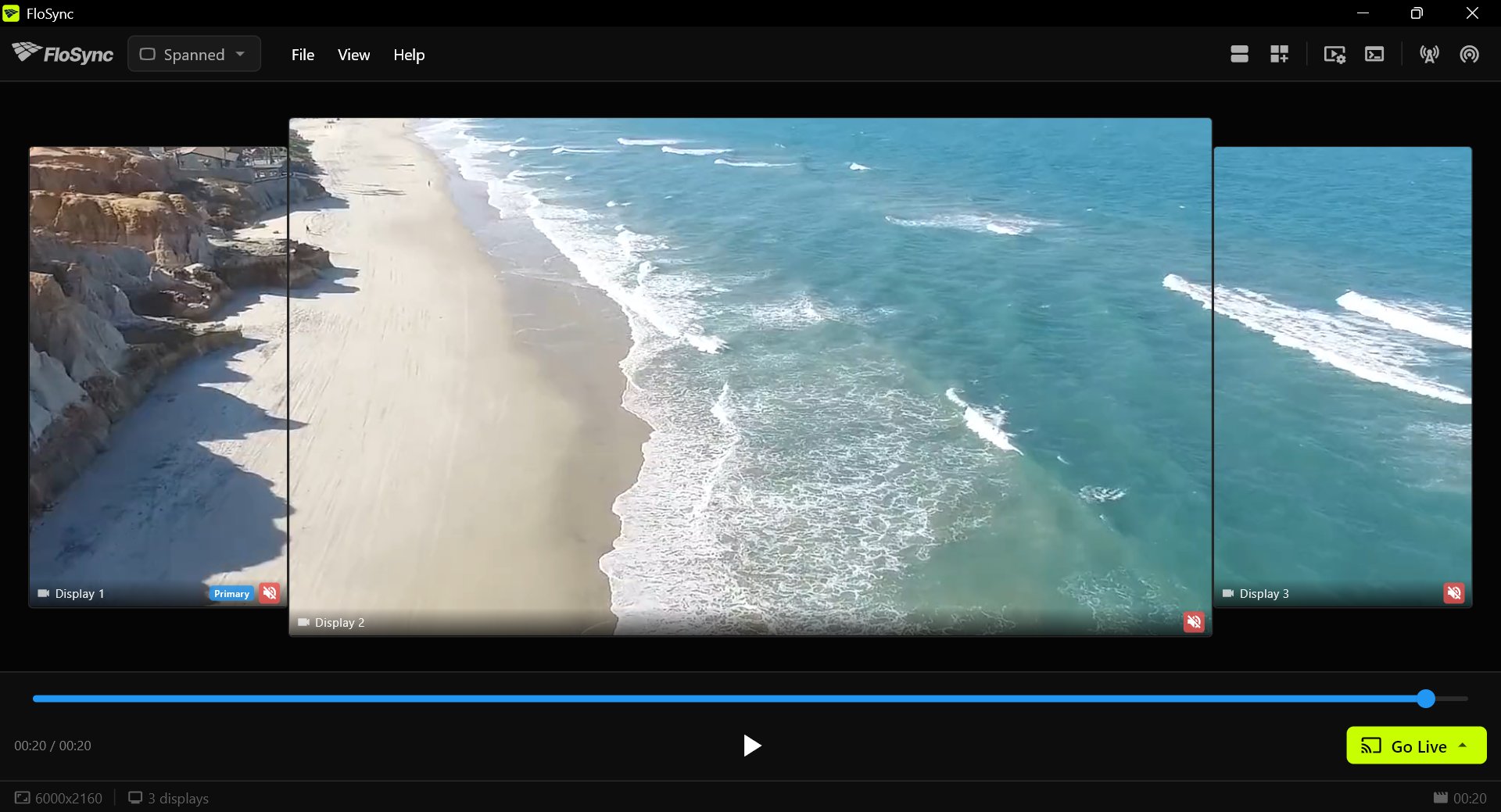 Spanned mode, with one video across a 4K landscape screen and two 1080p portrait screens.
For a step-by-step walkthrough of the simplest setup, see How to Span One Video Across Two Screens with FloSync.
When to Use It
- Video walls (2x2, 3x3, or any configuration)
- Wide panoramic setups
- Large-format digital art installations
- Stadium or arena setups
- Any setup where you want one continuous image across multiple screens
How It Works
- Select Spanned from the mode dropdown
- FloSync detects your screen arrangement (as configured in your operating system)
- Load content - FloSync calculates which portion each screen should show
- Each screen shows its segment of the content, creating one large continuous image
Audio Behavior
- Audio plays from the primary screen only to prevent echo (videos only)
- Secondary screens are automatically muted
- Toggling audio updates the speaker icon on every screen box, but only the primary screen's audio changes
Content Type Behavior
- Videos: Cropped per screen to show correct portion; plays in sync
- Images: Cropped per screen to show correct portion; respects fit mode
- Web Pages: Cannot be spanned - shows same page on all screens (like Mirrored)
Important: Web pages do not support spanning. If you need a web-based video wall, use videos or images instead.
Screen Arrangement
Spanned mode uses your operating system's screen arrangement. To configure:
macOS:
- Open System Settings > Displays
- Click "Arrange..."
- Drag screens to match their physical positions
Windows:
- Right-click desktop > Display settings
- Scroll to "Multiple displays"
- Drag screens to match their physical positions
Best Practices for Spanned Mode
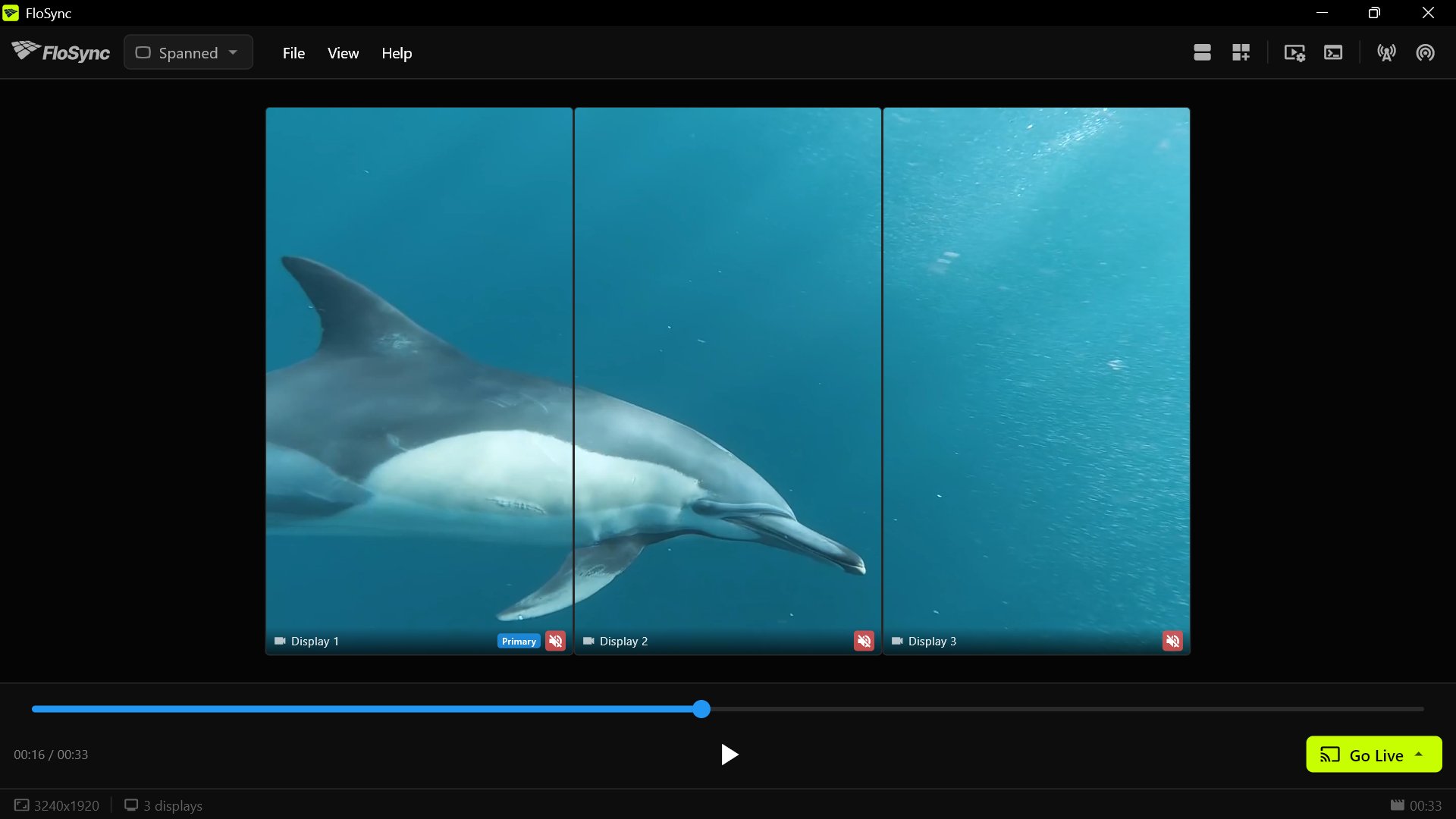 Spanned mode, with one video across three portrait screens.
- Match physical arrangement - Ensure your OS display settings match how your screens are physically positioned
- Screens do not have to match - Different sizes, resolutions and orientations all work. Identical screens give the most even result on a conventional grid, but deliberately mixed arrangements are common in creative and artistic installations
- Consider bezel compensation - Physical bezels between screens may cause visual gaps
- Test with static images first - Load a test pattern to verify alignment before your final content
Multi-Computer Video Walls (Global Canvas Extension)
For video walls spanning multiple computers, use the Global Canvas Extension feature. This allows you to define a virtual canvas larger than your local screens, so each computer shows the correct portion of a wall-sized video.
Example: 3x2 Video Wall
Consider a 3x2 video wall (3 columns by 2 rows) using 3 computers, each controlling 2 vertically stacked 1920×1080 screens:
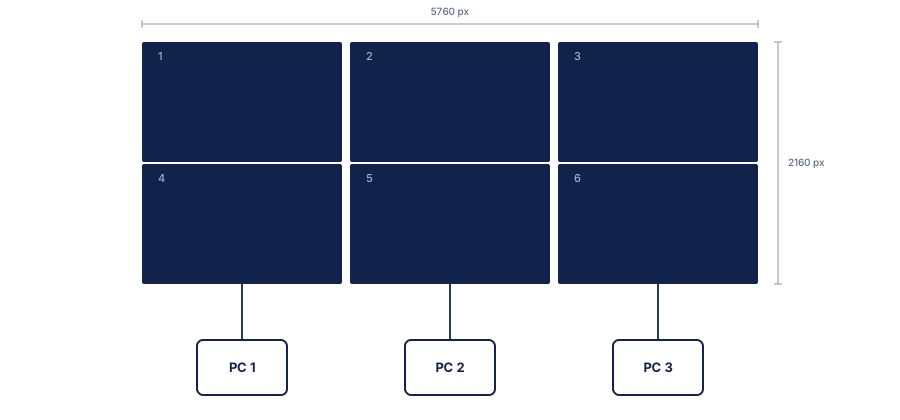 Six screens combine into one 5760×2160 global canvas.
Each computer needs different extension settings:
| Computer | Extension (Top, Right, Bottom, Left) | Position |
|---|---|---|
| Left PC | 0, 3840, 0, 0 | Shows left third |
| Middle PC | 0, 1920, 0, 1920 | Shows center third |
| Right PC | 0, 0, 0, 3840 | Shows right third |
Setting Up Global Canvas Extension
The Global Canvas Extension icon, just right of the schedule icon.
- Open the extension dialog - Click the grid icon in the toolbar
- Enter extension values - Specify how many pixels extend beyond your local screens in each direction (Top, Right, Bottom, Left)
- Use Quick Adjustments - Click the buttons in that row to add or subtract common resolutions: ±1920 for 1080p screens, ±3840 for 4K screens
- Click Apply to save your settings
- Preview the layout - Enable "Show Global Canvas" (zoom icon) to see your local screens positioned within the larger canvas
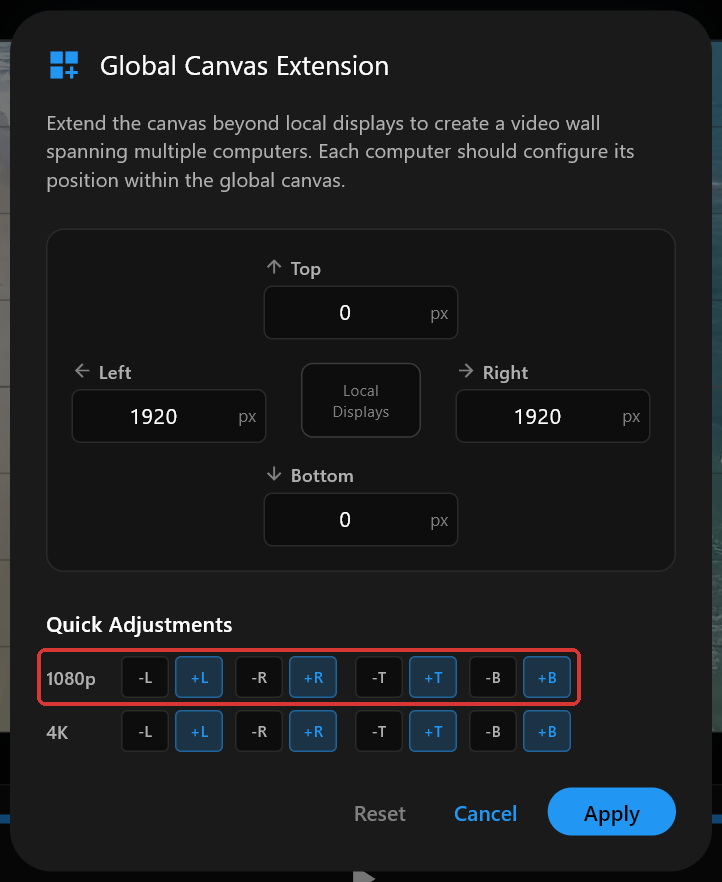 The Global Canvas Extension dialog, set for the middle computer of a three-computer wall.
Visual Preview
When global canvas preview is enabled, you'll see:
- Dark extended areas - Represents space occupied by other computers
- Grid overlay - Shows screen cell boundaries when using uniform screen sizes
- Labeled regions - "Extended Left", "Extended Top", etc. mark the extension areas
- Your local screens - Highlighted within the global canvas
You can drag your local screens within the preview to visually adjust your position:
- Regular drag snaps to screen-sized grid cells
- Hold Shift while dragging for free (non-snapping) positioning
Go Live with Display Modes
Each display mode works with the Go Live feature to create fullscreen presentations:
Independent Mode + Go Live
- Each fullscreen window shows its assigned content
- Audio continues per the screen's audio setting (videos only)
- All video content stays synchronized
Mirrored Mode + Go Live
- All fullscreen windows show the same content
- Only the primary screen window plays audio (videos only)
- Visual alignment across all screens (videos only)
Spanned Mode + Go Live
- Each fullscreen window shows its portion of the content (videos and images)
- Content is properly cropped for each screen's position
- Creates a seamless video wall experience
- Web pages show the same content on all screens (not cropped)
- Only primary screen plays audio (videos only)
Switching Modes
You can switch modes at any time using the mode dropdown in the top bar (when not in live mode):
- Click the mode dropdown
- Select your desired mode
- The change takes effect immediately
Note: The mode dropdown is disabled during live mode. Exit live mode first to change display modes.
Tip: When using scheduling, each scene can have its own display mode. Right-click a scene card in the schedule panel to quickly set a scene's mode without opening the edit dialog.
What Happens When You Switch
| From | To | What Happens |
|---|---|---|
| Independent | Mirrored | All screens load the content from the primary screen |
| Independent | Spanned | All screens load the content from the primary screen, then split it |
| Mirrored | Independent | Screens keep their current content but can now be controlled separately |
| Mirrored | Spanned | Content splits across screens (videos/images) or stays mirrored (web pages) |
| Spanned | Independent | Each screen keeps its current content portion |
| Spanned | Mirrored | Full content shows on all screens |
Choosing the Right Mode
Ask yourself:
-
Should all screens show the same thing?
- Yes, same content everywhere → Mirrored
- Yes, but as one big picture → Spanned
- No, different content per screen → Independent
-
Is this a video wall?
- Yes → Spanned (probably)
- No → Mirrored or Independent
-
Do viewers see multiple screens at once?
- Yes, and they should match → Mirrored
- Yes, and it's one big image → Spanned
- No, they only see one screen at a time → Independent