Network Sync
Network sync allows you to synchronize video playback across multiple computers on the same network. This is essential for large installations where a single computer can't drive all the required screens.
Overview
Network sync uses a server/client model:
- Server: One computer acts as the master and leads playback for the others
- Clients: Other computers connect to the server and follow it
Every computer needs its own copy of the same video, and all of them must be on the same local network.
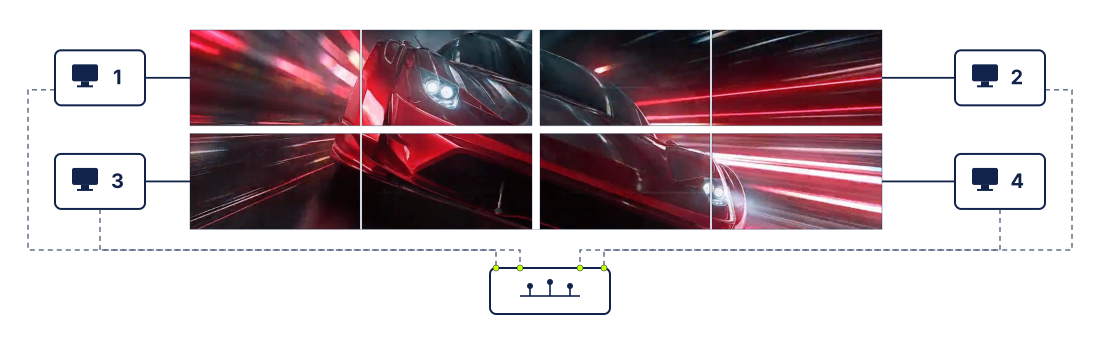 Four computers driving eight screens as one wall. Each machine plays its own copy of the same video and covers its own region; the network keeps them together. Each outlined group is one computer's pair of screens.
The finished wall as viewers see it: one video playing across all eight screens.
When to Use Network Sync
Network sync is designed for scenarios where:
- You have more screens than one computer can support
- Screens are physically distant (different rooms, different floors)
- You need redundancy (multiple computers for reliability)
- Your video wall is larger than one computer's GPU can handle
Example Setups
Retail Store
- Server in back office driving main entrance screen
- Client computers at each department driving local screens
- All showing synchronized promotional content
Event Venue
- Server at tech booth
- Clients driving screens throughout the venue
- Synchronized playback for live event content
Large Video Wall
- Multiple computers, each driving a section of the wall
- One server coordinates timing
- Each computer uses Global Canvas Extension to define its position
- Appears as one seamless screen
Requirements
Before setting up network sync:
- Same network: All computers must be on the same local network (same subnet)
- Same video: Each computer needs its own copy of the same video. The filename does not have to match, but the content does (clients can import content directly from the server)
- Network ports: FloSync uses two. UDP port 9201 carries playback sync, and TCP port 9202 carries content import between machines. Allow both, or sync will work while importing content from the server silently fails
- Firewall: Allow FloSync through your firewall on all computers
Setting Up the Server
The server is the "master" that other computers sync to.
Step 1: Load Your Video
- Open FloSync on the computer that will be the server
- Load your video file by dragging it onto any screen box
- Optionally, use the timeline to seek to your desired starting position
Step 2: Start the Server
- Click the Server icon (tower icon) in the top bar
- The icon lights up bright lime, indicating server mode is active
- FloSync is now leading playback for the network
- The status bar at the bottom will show "Server"
Server Behavior
Once running as server:
- All connected clients follow the server's playback
- Play, pause and seek on the server apply to every client
- The server computer controls playback for all connected clients
Controller Mode (Server-Only Feature)
When running as a server, you have access to Controller mode, a Go Live option that lets you control remote displays without creating fullscreen windows on your local machine.
What it does:
- Clients go live and stay in sync exactly as they would in normal Go Live
- Content plays in the composer's screen boxes instead of fullscreen
- All playback controls remain active (play, pause, scrub, scene navigation)
- Status bar shows "Live (Controller)" with an orange indicator
When to use it:
- Operating a video wall from a laptop at a control booth
- Managing displays at a trade show while keeping your screen available
- Testing network sync setup without going fullscreen locally
- Running a live show where the operator needs to see and control content
How to use it:
- Start server mode (tower icon lit)
- Load your content
- Click the Go Live dropdown
- Select Go Live (Controller)
If Controller mode is selected while you are connected to another server as a client, FloSync will ask before switching this machine to server mode.
Clients connected to your server will go live normally with fullscreen windows, while your server machine stays in the composer view.
See Controller Mode in Go Live for more details.
Setting Up Clients
Clients discover and connect to the server automatically.
Step 1: Load the Same Video
- Open FloSync on each client computer
- Load the same video file that's on the server by dragging it onto a screen box
- The filename doesn't need to match, but the content must be identical
Tip: You can skip this step by using the Import on Connect checkboxes when connecting to the server. FloSync will copy the server's scenes and content files to your machine automatically.
Important: Clients must have the same video loaded. If the lengths differ, that computer will not follow the server's timeline. It carries on playing its own video on its own, which looks like one screen quietly doing its own thing rather than an error.
Step 2: Connect to Server
- Click the Client icon (Wi-Fi icon) in the top bar
- FloSync will start searching for servers on the network
- A dialog appears showing discovered servers
Step 3: Select Your Server
- Click on the server you want to connect to
- FloSync will connect and begin syncing
- The client icon will turn blue, indicating connected status
- The status bar at the bottom will show "Connected to [server name]"
Import on Connect
The server selection dialog has an Import from server... section with optional checkboxes that let you pull the server's configuration during connection:
- Global canvas imports the server's canvas layout so your displays match. This one is skipped if the server runs a different operating system than you do (see Mixed macOS and Windows walls).
- Scenes imports the server's scene list, including display modes and scheduling.
- Content files downloads the server's media files to your machine and automatically enables Scenes.
- Audio settings imports each scene's audio on/off state, and also enables Scenes, since audio is stored per scene.
This is the fastest way to set up a new client: check all four boxes, select a folder for the files, and the client is fully configured in one step.
Mixed macOS and Windows Walls
A canvas cannot be copied between a Mac and a Windows PC. If you try, FloSync tells you so and leaves your canvas alone:
Canvas import across platforms is not supported in this version. Configure the canvas locally instead.
Everything else still imports normally, including scenes, content files and audio settings. Only the canvas has to be entered by hand on each machine.
The reason is that the two systems do not count screen space the same way, so a number that is correct on one would put the wall in the wrong place on the other. Set the values on each machine against its own displays and the wall lines up.
Mixed fleets are supported. This is one setup step you do per machine rather than once on the server.
Client Behavior
Once connected:
- The client follows the server's playback
- Play, pause and seek on the server apply here too
- Alignment is maintained for you automatically
- A sync quality indicator appears in the status bar, reading Excellent, Good, Fair or Poor. It reflects how steady your playback position has been, not a diagnosis of the cause. Excellent and Good are what a healthy install looks like. If you see Fair or Poor, the network is the sensible first thing to check (congestion, interference, or a Wi-Fi link where a cable would do), but it doesn't rule out a loaded machine, heavy content, or anything else in your setup
- Control playback from the server. Using the local controls on a client works against the server and gives you no useful result
Importing from Server
Once connected as a client, you can import the server's configuration and content at any time, not just during initial connection.
Import Menu
Click the connected server icon in the top bar to open the import menu:
- Import Global Canvas copies the server's canvas layout to your machine.
- Import Scenes copies the server's scene list, including display modes and scheduling settings.
- Import Content downloads media files from the server for all scenes.
- Import Audio Settings updates the audio on/off state of your existing scenes to match the server, leaving everything else about them alone.
- Import All does the canvas, the scenes and the content in one step. Audio settings are not included, so run Import Audio Settings afterwards if you want those too.
Import Scenes replaces your scene list with the server's. If you have more scenes locally than the server does, FloSync asks first and tells you how many will be removed.
Importing Content for a Single Scene
Right-click any scene in the schedule panel and select Import Content from Server to download files for just that scene. You can also right-click a display box or the background area.
How Content Import Works
- FloSync checks which files the server has loaded
- You choose a destination folder on your machine
- If any files already exist, you can choose to overwrite or skip them
- A progress dialog shows the download status with file count, progress bar, and time remaining
- You can cancel at any time
The server only offers the files in its current schedule, and only to machines already connected to it. Nothing else on that computer is reachable.
Note: Local HTML files cannot be transferred over the network and will be skipped during content import. Web pages loaded from a URL import normally.
Note: Content import needs TCP port 9202 open, which is separate from the port playback sync uses. If sync works but downloads never start, that port is the first thing to check.
Network Sync in Action
Once your network sync is running:
Starting Playback
- Press play on the server computer
- All connected clients will start playing
- Playback remains synchronized
Pausing
- Press pause on the server computer
- All clients will pause at the same position
Seeking
- Scrub the timeline on the server computer
- All clients will seek to match
Preview Scrub Sync
When you're still setting up and haven't gone live yet, scrubbing the timeline on the server automatically updates the preview on every connected client that has the same video loaded. This lets you verify that content and positioning look correct across all machines before going live.
A client whose video is a different length will not follow the scrub. That is a useful check in itself: if one preview stays put while the others move, that machine has the wrong file.
Client Controls
Nothing stops you pressing play or pause on a client, but there is no good reason to. The result depends on what that machine is doing at the time and it is not something to build a workflow on.
Control playback from the server. That is the one arrangement that behaves predictably on every machine.
Persistence and Auto-Reconnect
FloSync remembers your network sync configuration and automatically restores it when restarted.
Server Persistence
If FloSync is running as a server when you quit:
- On next launch, it automatically starts as server again
- No manual action required
- The server icon (tower) is lit immediately
Client Auto-Reconnect
If FloSync is connected as a client when you quit:
- On next launch, it automatically searches for the last connected server
- The client icon (Wi-Fi) turns orange during search
- Status bar shows "Searching for [server name]..."
- When the server is found, connection is re-established automatically
Server Disconnection Handling
If the server stops, quits, or becomes unreachable while a client is connected:
- The client notices on its own and drops back into searching
- The client icon turns orange (searching mode)
- Client mode stays on. You do not have to reconnect by hand
- When the server comes back online, the client reconnects automatically
This is useful for:
- Server restarts during configuration changes
- Brief network interruptions
- Server app crashes that are quickly resolved
Manual Server Selection
When the client icon is orange (searching), you can click it to:
- Stop Searching - Exit client mode entirely
- Keep Waiting - Close the dialog but continue searching in the background
- Select a different server - If other servers are visible, click one to connect
Interval Mode with Network Sync
When using Interval scheduling mode with network sync, clients automatically follow the server's scene transitions.
How It Works
- Server controls scenes - The server determines which interval scene is active
- Clients follow - When the server transitions to a new scene (by timer or keyboard), clients receive the change
- Keyboard sync - If someone presses arrow keys or number keys on the server, all clients switch to the same scene
Setup
- Configure the same interval schedule on server and client computers, or import scenes from the server
- Load matching content in each scene, or import content from the server
- Start server mode on the master computer
- Connect clients to the server
- Go Live on the server first, then on clients
Notes
- Only video content syncs between computers; images and web pages display independently
- Cue scenes (manual advancement) work with network sync - press a key on the server to advance all computers
- Give every computer the same number of scenes in the same order. A client with a shorter list quietly stays on the scene it was already showing when the server moves to one it does not have, so a machine that stops changing scene usually means its scene list is short
- A client going live while the server is already running joins where the server is, both in the schedule and in the video
Keeping Everything Aligned
FloSync keeps all your computers playing together automatically.
Sync Tolerance
FloSync includes network sync tolerance controls in Preferences so you can tune behavior for your environment. In most setups, the default settings work well and keep playback visually aligned.
Multi-Computer Video Walls
For video walls spanning multiple computers, combine Network Sync with Global Canvas Extension and Spanned Mode.
How It Works
- Server leads playback - One computer acts as the master
- All computers sync playback - Clients follow the server's timeline
- Each computer shows its portion - Global Canvas Extension defines which part each computer displays
Setup Process
- On all computers: Load the same video file
- On all computers: Set display mode to Spanned. Global Canvas Extension is only available in Spanned mode, and cannot be changed while live
- On all computers: Configure Global Canvas Extension for each computer's position in the wall
- On the server: Click the server icon (tower) - lights up
- On clients: Click the client icon (Wi-Fi) and connect to the server - turns blue
- On all computers: Click Go Live
Example: 3-Computer Video Wall
For a 3x2 wall (three computers side-by-side, each with 2 stacked 1920×1080 screens):
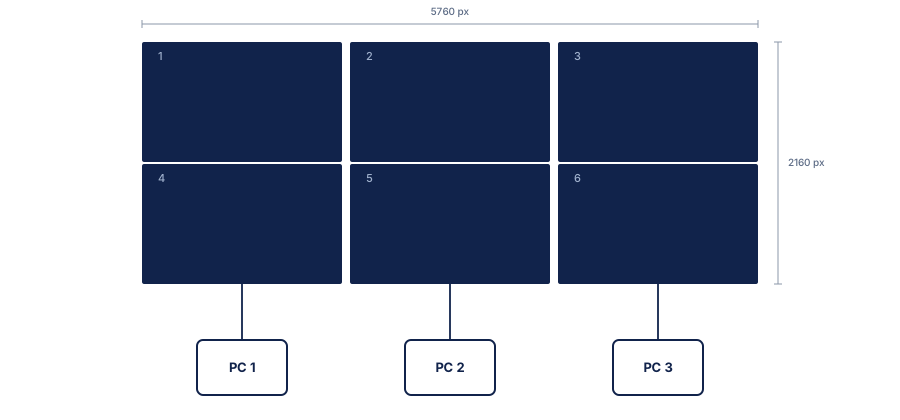 Six screens combine into one 5760×2160 global canvas.
Canvas Extension settings:
| Computer | Role | Extension (L, T, R, B) | Shows |
|---|---|---|---|
| Left PC | Server | 0, 0, 3840, 0 | Left 1/3 |
| Middle PC | Client | 1920, 0, 1920, 0 | Center 1/3 |
| Right PC | Client | 3840, 0, 0, 0 | Right 1/3 |
You don't have to type those numbers. The Global Canvas Extension dialog has a Quick Adjustments row of one-click buttons that add or remove a screen's worth of space at a time: 1080p steps by 1920 across and 1080 down, 4K by 3840 and 2160. For the Middle PC above, one press of +L and one press of +R on the 1080p row gives you 1920 on each side.
Values are set on each machine separately, against that machine's own displays, and cannot be copied from a Mac to a PC or the reverse. See Mixed macOS and Windows walls.
Visual Preview
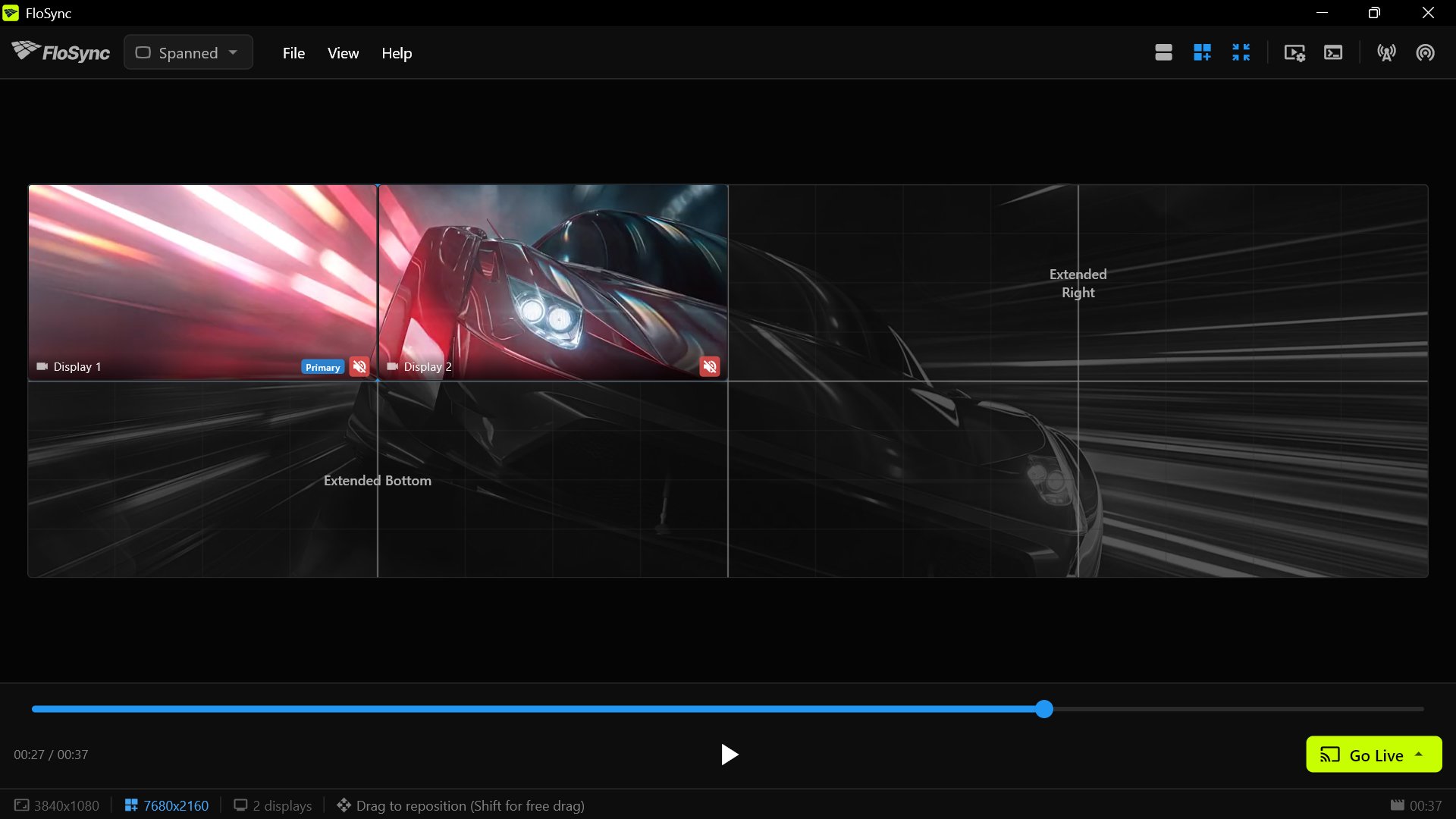
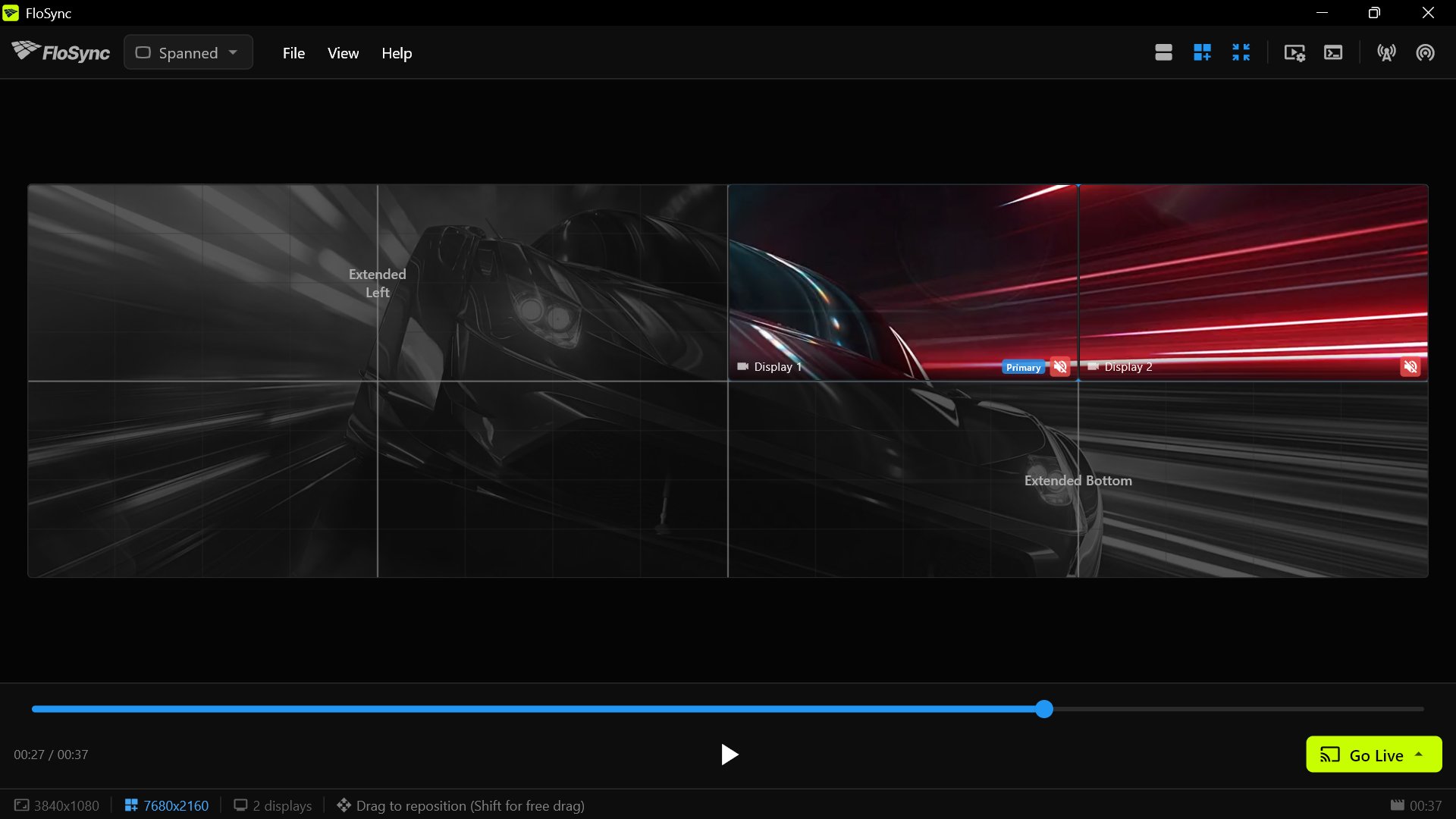
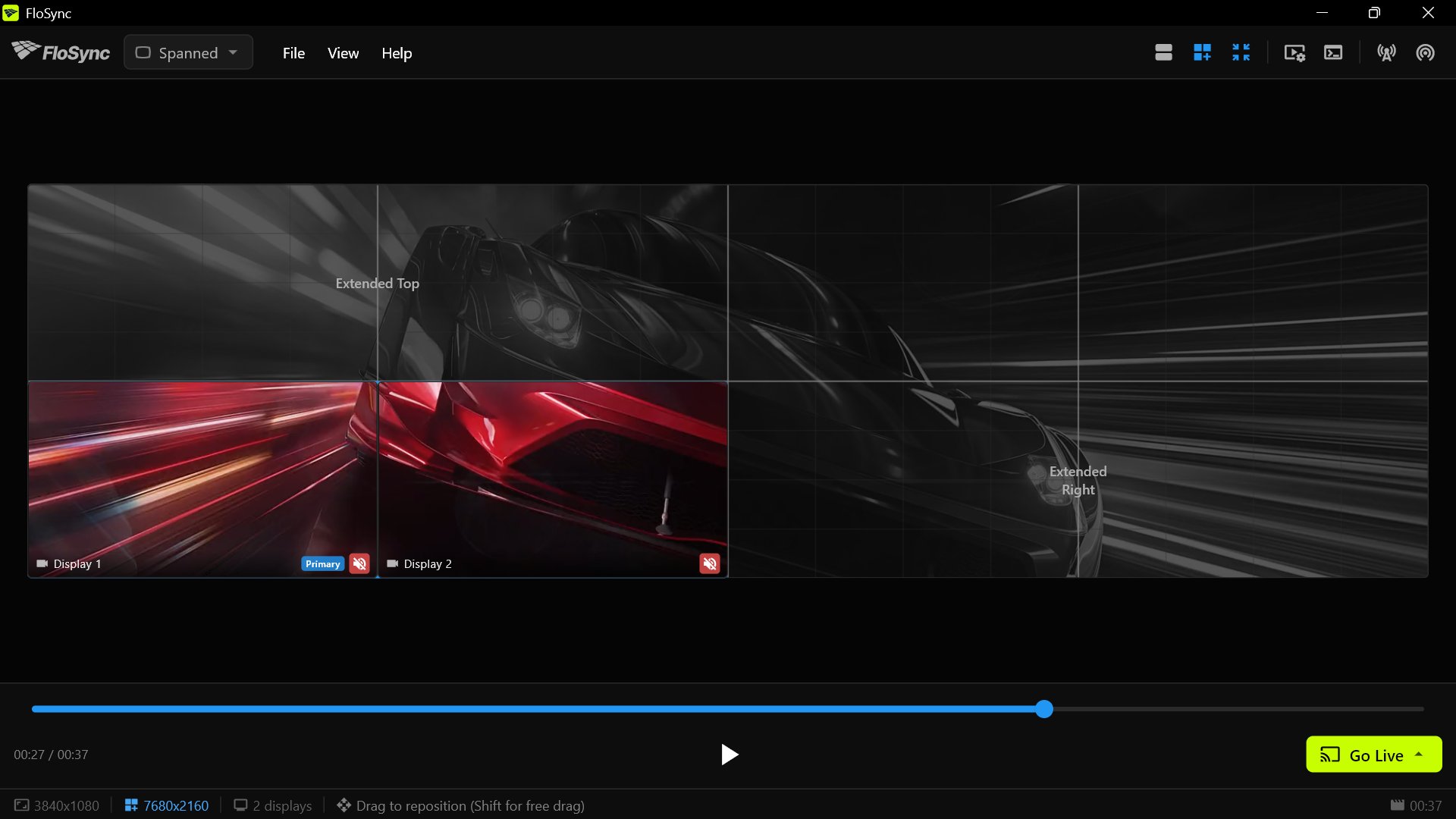
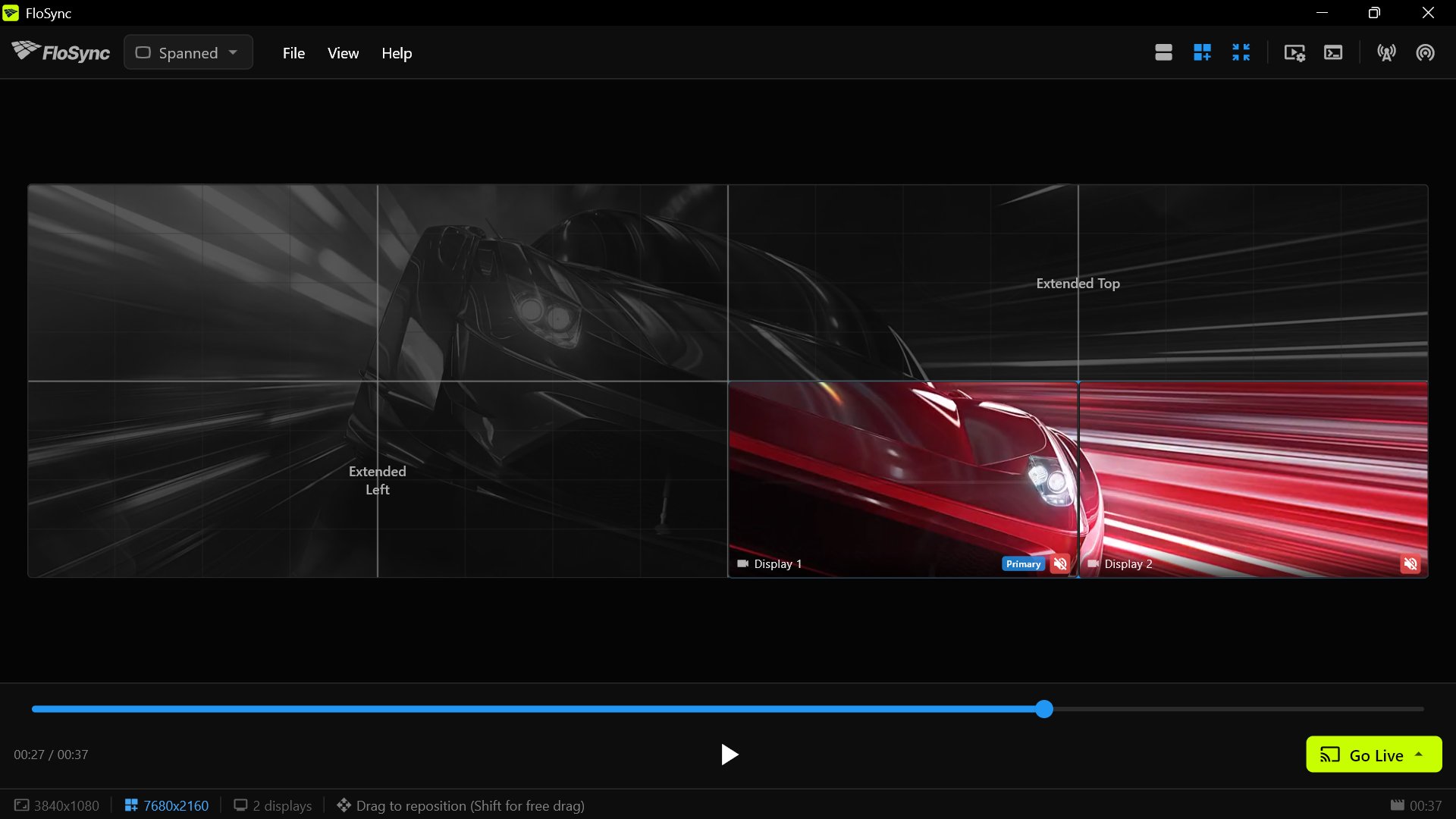
Use the Global Canvas Preview (zoom icon) to visualize your setup:
- Dark areas show where other computers' screens are
- Grid lines help align to screen boundaries
- Drag your local screens to adjust position
- Hold Shift while dragging for free (non-grid) positioning
Here is the same eight-screen wall from each computer's point of view:
Best Practices
- Test before the event: Always test your full setup before going live
- Use wired networking for critical installs: Wired connections are usually more stable than Wi-Fi. Wi-Fi is not a problem in itself, and for screens spread around a building it is often the sensible choice. Reach for a cable when the screens sit side by side, where small differences are easiest to notice
- Match video files exactly: Keep the same source file on every machine
- Start server first: Ensure the server is running before starting clients
- Monitor the sync log: Open the Log Panel from the View menu to watch for sync issues
- Have a backup plan: For critical installations, have spare equipment ready
- Go Live after connecting: When using network sync, establish the connection before going live
- Configure canvas extension first: For multi-computer video walls, set up Global Canvas Extension on each computer before going live
- Check both firewall ports: UDP 9201 for playback sync, TCP 9202 for importing content from the server
Troubleshooting Network Sync
Server Not Found
Symptoms: Clients don't see the server in the discovery dialog
Solutions:
- Verify both computers are on the same network/subnet
- Check that the server has actually started (shows "Server" in status bar)
- Temporarily disable firewalls to test
- Verify UDP port 9201 is not blocked
- Check the status bar for a message like Server "Studio-PC" was skipped, incompatible FloSync version. Update both devices to sync. A computer running a different FloSync version does not appear in the list at all, so an empty list plus that message means a version difference, not a network problem. Update every machine to the same version
- If the client computer has both Wi-Fi and Ethernet active, turn one off. With two live connections the computer picks one on its own, and it may not be the one the server is on
One Computer Ignores the Server
Symptoms: Everything connects, but one machine plays its own thing, or stays on one scene while the others change
Solutions:
- Confirm that machine's video is the same length as the server's. If it isn't, it will play independently rather than report an error
- Confirm it has the same scenes, in the same order, as the server
- Scrub the timeline on the server before going live. Any preview that doesn't move has the wrong file
Content Import Fails While Sync Works
Symptoms: The machines sync fine, but importing content from the server never starts or never finishes
Solutions:
- Allow TCP port 9202 through the firewall on the server. It is a different port from the one sync uses, so sync working tells you nothing about it
- Check that the client is still connected. Only connected machines may download
- Local HTML files are skipped by design. Web pages loaded from a URL import normally
Sync Drifts Over Time
Symptoms: Clients gradually fall behind or ahead of the server
Solutions:
- Check network quality (packet loss causes missed sync updates)
- Adjust sync tolerance in Preferences if needed
- Verify video files are identical (different encodes may have timing differences)
- Check CPU load - overloaded systems may struggle to maintain sync
Jerky/Stuttering Playback
Symptoms: Video stutters or jumps frequently
Solutions:
- Increase sync tolerance in Preferences
- Check network congestion
- Verify hardware can handle the video decode
- Use a wired network connection instead of Wi-Fi
Connection Drops
Symptoms: Client disconnects from server intermittently
Solutions:
- Check network stability
- Verify server is still running
- Check for IP address conflicts
- Consider network switch/router quality for large installations
Firewall Configuration
FloSync uses two ports:
| Port | Carries | Without it |
|---|---|---|
| UDP 9201 | Finding other computers, and playback sync | Clients never find the server |
| TCP 9202 | Importing content from the server | Sync works, downloads fail |
Allowing the FloSync application through the firewall covers both. If your firewall is configured by port rather than by application, add both rules.
macOS: FloSync will prompt for permission on first use. If blocked, go to: System Settings > Network > Firewall > Options > Allow FloSync
Windows:
- Open Windows Defender Firewall
- Click "Allow an app through firewall"
- Add FloSync and enable for Private networks