How Many Screens Can One Computer Drive?
FloSync sets no screen limit. Your ceiling is your computer's display outputs and the video you play. A ten-minute test finds your own number.
 By Daniel Palka
8 min read
By Daniel Palka
8 min read
Contents
"How many screens can it run?" is the first question almost everyone asks, and the honest answer is that it is the wrong question by one step. There is no universal number. The number belongs to your computer and your video, not to the software playing it.
FloSync does not set a maximum. One computer runs as many displays as that computer can drive, and if you need more than that, you add another computer. So this is about how to find your number rather than ours.
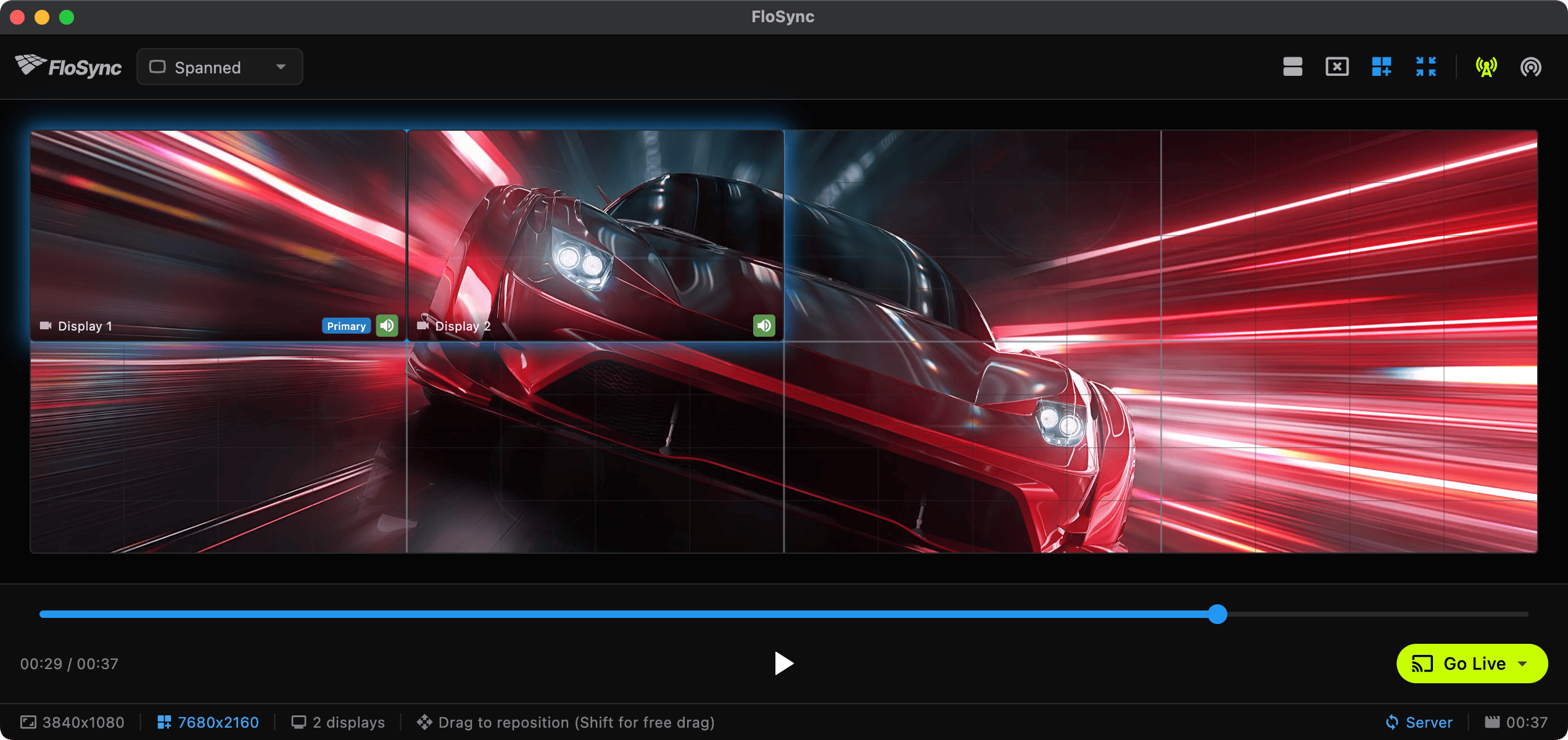
That is one video across eight panels. The two highlighted ones are the displays this particular computer is driving; the other six belong to other machines. Look at the readout along the bottom: 3840x1080 is what this computer is putting out, and 7680x2160 is the whole wall it is contributing to. Those two numbers are the shape of the problem. The first is a hardware question. The second is a planning question.
Two questions, not one number
When you are sizing a single computer, there are two separate things to establish, and people routinely conflate them.
How many displays will this computer actually expose? This is settled before FloSync is involved, by the machine, its drivers, and any docks or adapters in the chain. FloSync uses the displays and the arrangement your operating system provides, so if Windows or macOS does not list the fourth display in its own settings, FloSync has nothing to show you.
The count is also not the number of sockets on the back. Graphics hardware commonly exposes more connectors than it can drive at once, and a dock can either extend that or quietly cap it. The specification for your exact model is the only reliable source. Counting connectors is how people end up surprised on install day.
Will it play your video smoothly across all of them? This one is about the file as much as the machine: its resolution, its codec, how heavily it is compressed, and how much work the whole playback path has to do to put it on that many pixels. The same computer that handles one clip comfortably can labour on another that looks identical to the eye. Our video preparation guide covers what to choose and why.
Those two questions have different answers and different fixes, and neither has a single cause. A display missing from the operating system could be the driver, the OS configuration, how many outputs the graphics hardware drives at once, a dock, an adapter or a cable, so that is what to work through before buying anything. A picture that stumbles when everything is visible is a signal to test the real media on the real machine, not proof that the file is at fault. Treating either symptom as having one obvious cause is how the wrong thing gets replaced.
What we can honestly tell you about hardware
We test FloSync across a deliberately wide spread of machines, from a laptop eight or nine years old running integrated graphics to a current desktop with a discrete card.
Across that range, FloSync has never been the binding constraint. We are not going to turn that into a table of screen counts, because we have not measured one: that spread exists to catch crashes and sync problems, not to find the point where playback gives out. Publishing a number from it would be describing our hardware and calling it yours.
What we can say without inventing anything is the part that comes from the software rather than the lab: there is no screen limit inside FloSync to run into. Whatever ceiling you meet is outside FloSync, in the equipment and the media.
Test the setup you are going to install
The only capacity answer worth trusting is the one you produce on the actual equipment, and it takes about ten minutes.
Connect every display first and check the operating system's own display settings before opening FloSync, because a screen missing there is a problem to resolve before FloSync enters the picture. Set each display to the resolution and orientation it will run at in the finished installation. Load the video you actually plan to run, not a lighter stand-in, and play it across the whole arrangement full screen rather than judging from a preview. Then watch it for a few minutes, because uneven motion or one panel lagging its neighbor is much easier to fix before the equipment ships to site than after.
If it plays cleanly, that is your answer for that machine with that content. Change the content later and it is worth another ten minutes.
If more than one computer is involved, you do not have to go live to check the wall. Scrubbing the timeline on the server updates the preview on every connected machine, so you can drag through the video and watch whether each one is showing the right piece of the picture, with the room lights on and nothing committed. Getting the arrangement wrong is much cheaper to discover this way than during a first full-screen run in front of an audience.
One computer, several screens
For a lot of installations this is the whole story: one machine, its displays, no network involved.

You choose what the screens do. Independent gives each display its own content, which suits a room where three screens are showing three different things. Mirrored puts the same content on every display, which is what a row of identical menu boards wants. Spanned treats the displays as one surface and spreads a single image across them, which is the video wall case and the one drawn above. Our guide to spanning one video across two screens walks the simplest version step by step. The full detail is in Display Modes.
Your screens do not have to match
FloSync works with whatever the operating system hands it, and that includes displays that are nothing like each other. Different sizes, different resolutions, portrait next to landscape. Plenty of installations are deliberately mismatched, particularly in creative and artistic spaces where an even grid is not the point. If you are counting screens, count what you have rather than what a matched set would cost.
When one computer is not enough
At some point you run out of outputs, or the machine runs out of headroom for the file. That is not the end of the wall. It is where you add a computer.
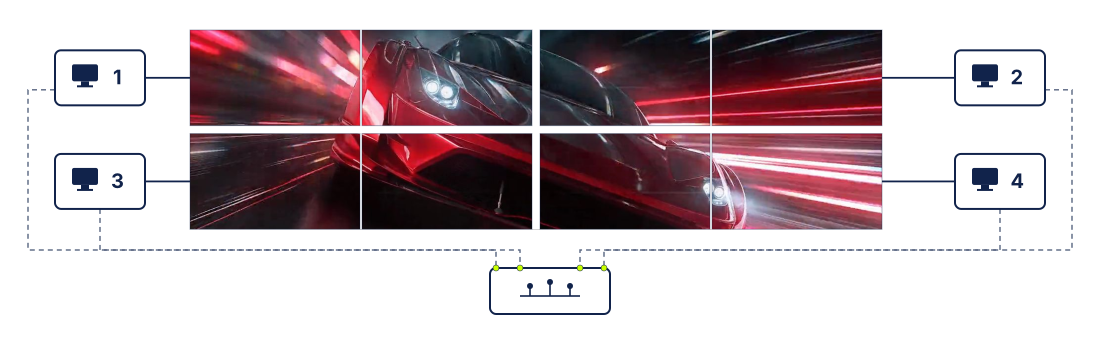
Adding a machine to the network is not by itself what makes a bigger wall. Two things do that together. Each computer runs in Spanned mode, and Global Canvas Extension is where you tell it how large the whole wall is and which piece of it this machine is responsible for. That is what the 7680x2160 in the screenshot above is: the full canvas, with each computer painting its own region of it. Then Network Sync keeps the machines playing together, so the seams line up. Network Sync has the setup, and our guide to syncing video across multiple screens walks through building one.
One requirement to plan around: every machine in a spanned wall needs its own copy of the same video available locally. This is a way to spread one picture across many screens, not a way to play several different files in lockstep.
We do not cap the number of machines, so the ceiling stops being a software question and becomes a question about the room: how much equipment you want to own, and how dependable the network between it is.
When you should not use FloSync for this
FloSync cannot make a computer exceed its own hardware. If the operating system will not recognize your displays at the resolution you need, FloSync cannot fix that, and it is worth being clear that installing ours will not.
There is also a category of job we are the wrong answer for. If you need a fixed, vendor-certified appliance that takes one source and splits it across a known wall, with a support contract attached to that exact configuration, buy a dedicated video wall processor. That is what they are for, and the certainty is the thing you are paying for.
FloSync suits the other shape: build with ordinary computers, use whatever screens they can drive, and add machines as the installation grows. The app is free, so how big the wall gets is a hardware question rather than a licensing one.
The short version
Start with the displays your computer actually supports, according to its specification rather than its ports. Test the real video across the real arrangement. Add computers when you run out of outputs or headroom, and not because you hit a limit we imposed, because there isn't one.
Frequently asked questions
How do I work out how many screens my computer can drive?
Connect them all, confirm the operating system lists every one, then play the actual video you intend to run across the whole arrangement at its final resolutions. That answers it for your machine and your content, which is the only answer that matters.
My computer has four video ports. Does that mean four displays?
Not necessarily. Graphics hardware often exposes more connectors than it can drive simultaneously, and a dock or adapter chain can raise or lower that number. The manufacturer's specification for your exact model is the reliable source; the sockets on the back are not.
Do the computers in a multi-computer wall need to be identical?
No. Each machine only has to drive the displays plugged into it and play its own local copy of the same video.
What decides how many computers a wall needs?
Divide the wall by what each machine can comfortably drive. When a computer runs out of display outputs or playback headroom, that is where the next computer starts.
About the author
Daniel Palka
Creator of FloSync
Daniel has been building multi-screen video software since 2007, when FloSync began as a student project called ArraySync.
Our StoryRelated articles
-
Free Video Wall Software: How to Sync Video Across Multiple Screens
Free video wall software that keeps every screen in sync. Why displays drift apart over time, and how to lock them together across one computer or many.
-
Video Wall Software for Trade Shows and Live Events
What to look for in video wall software when you are setting up in an unfamiliar venue with limited time: sync, setup speed, scheduling and hardware.