How to Sync One Video Across Eight Screens with Four PCs
Set up a 4x2 video wall on four Mac or Windows computers, step by step, with one video playing across all eight screens.
Contents
- What you need
- Step 1: Plan the video wall on paper first
- Step 2: Cable and arrange each computer's pair of screens
- Step 3: Put all four PCs on the same local network
- Step 4: Install FloSync on all four computers
- Step 5: On PC 1, add the sports car video
- Step 6: Switch PC 1 to Spanned mode
- Step 7: Set the wall's size on PC 1
- Step 8: Make PC 1 the server
- Step 9: Connect PCs 2, 3 and 4 to the server
- Step 10: Check the import on each client
- Step 11: Drag each client's pair to its quarter
- Step 12: Check the wall in the preview
- Step 13: Go Live, server first
- Step 14: Watch the finished wall
- Wrapping up
FloSync is a free app for Mac and Windows that keeps video playback synchronized across multiple computers. This guide builds an eight-screen video wall, four screens wide and two tall, from four ordinary computers instead of a video-wall controller. Each computer drives two of the screens, and one video plays across all eight as a single picture.
What you'll build.
What you need
Time: 30 to 40 minutes
- Eight landscape screens for a 4x2 grid (this guide uses matching 1080p screens, and other sizes need different values in Step 7)
- Four computers, each able to drive two displays at once (two ports alone don't guarantee it, so check your graphics hardware if unsure)
- A local network shared by all four computers, on the same subnet
- FloSync, free to download for Mac and Windows, on each computer
- A video, such as the free sports car sample used in this guide (H.264 All-Intra 4K, 222 MB; other formats on Video Preparation)
This guide assumes all four computers run the same platform, all Mac or all Windows, because FloSync copies the wall's size only between computers on the same platform. A mixed Mac and Windows wall takes a few extra steps; the FAQ below covers them.
Step 1: Plan the video wall on paper first
Sketch your 4x2 grid and label its four side-by-side pairs PC 1 to PC 4.
PC 1 and PC 2 drive the top row, left to right, and PC 3 and PC 4 the bottom row. Steps 7 and 11 follow this plan.
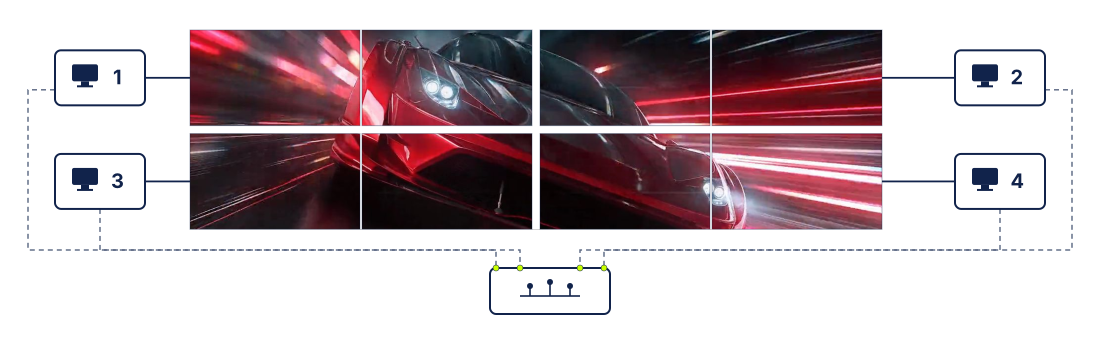 Four PCs, two screens each.
Step 2: Cable and arrange each computer's pair of screens
Connect each PC to its own two screens and set the desktop to Extend, not duplicate, with the left screen on the left and the right screen on the right.
FloSync lists your screens in this order.
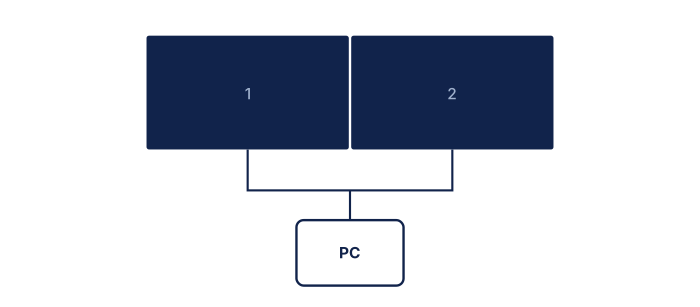 One computer, two screens side by side.
Step 3: Put all four PCs on the same local network
Connect all four computers to the same local network, wired if you can.
A switch with a cable to each computer is the simplest setup. For a private network used only by the wall, see Dedicated Network Setup.
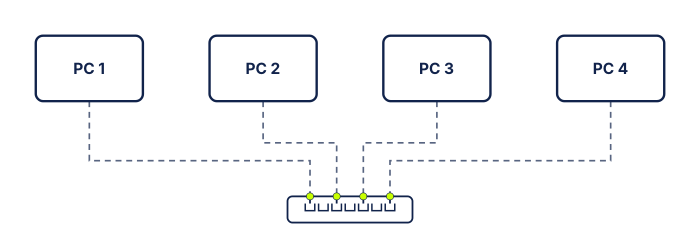 Four computers on one switch.
Step 4: Install FloSync on all four computers
Download and install FloSync on each of the four computers, then open it.
The download page has the installers for Mac and Windows. The composer, FloSync's main window, shows one screen box per display, arranged the way your system's display settings arrange the screens, so each computer shows two side by side. If a box is missing or out of place, fix it in your display settings before going on.
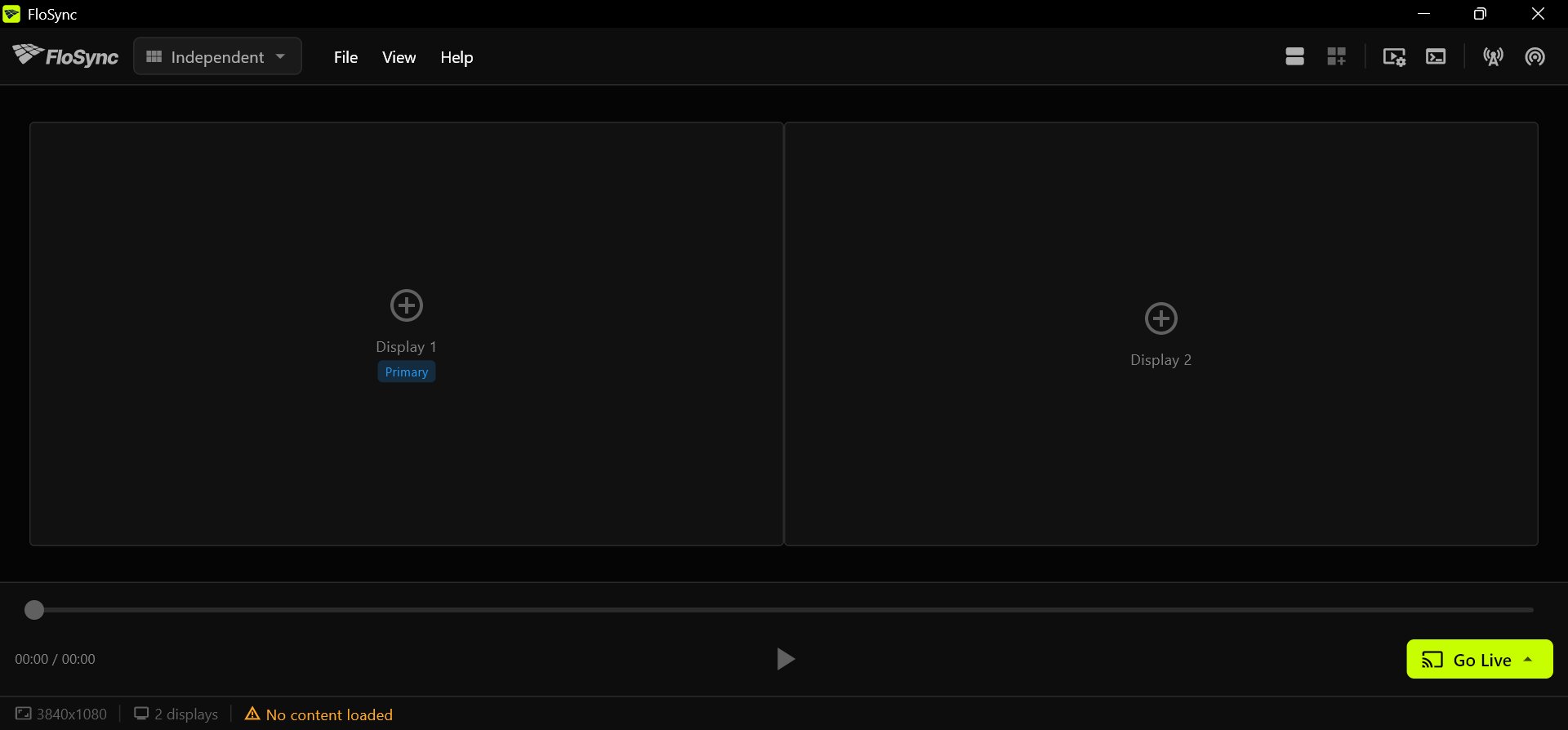 The boxes should be in the same order as your screens.
Step 5: On PC 1, add the sports car video
On PC 1, save the sample video somewhere permanent, then drag it onto the Display 1 box.
FloSync plays the file from wherever you leave it, and the other computers get their copy from PC 1 in Step 9.
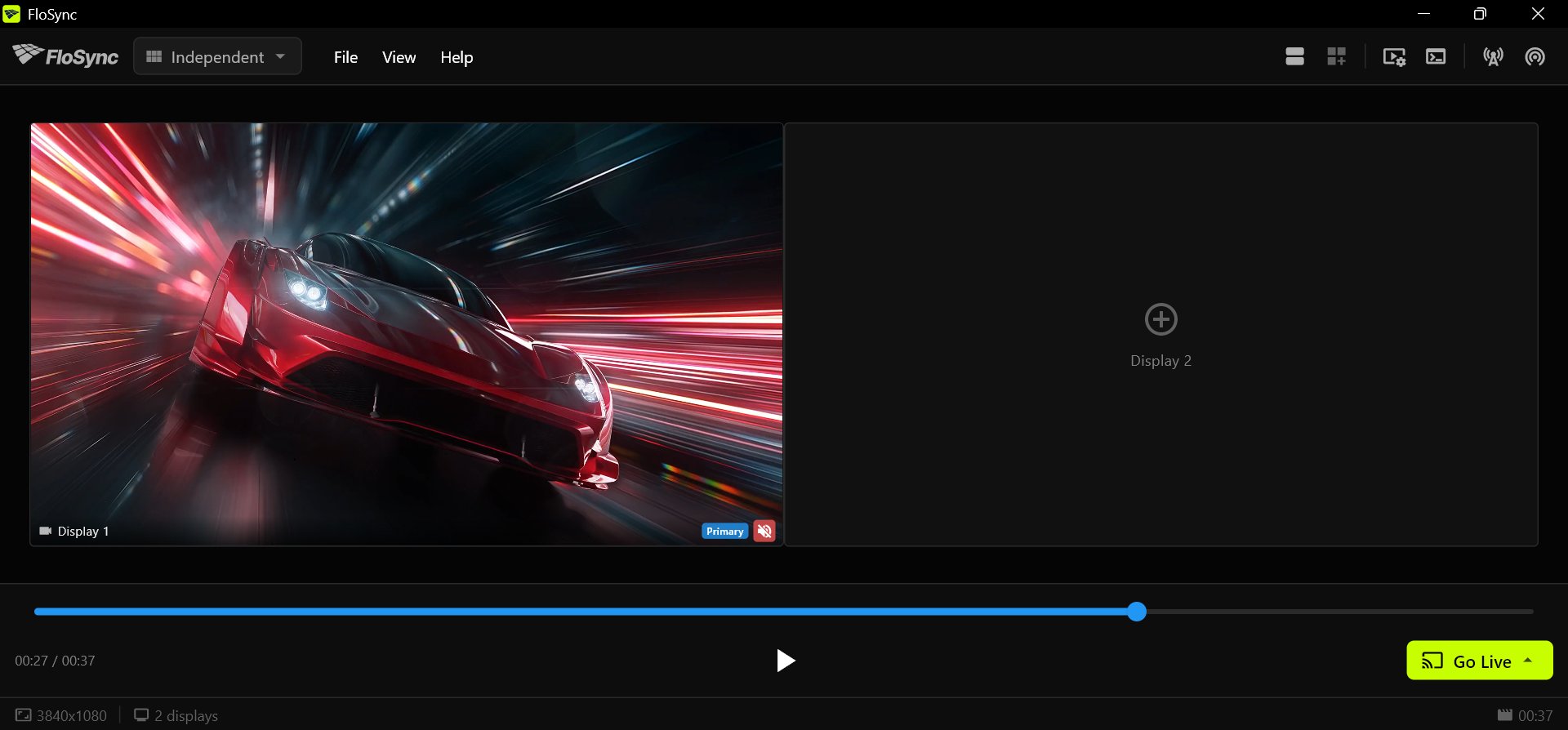 The car on Display 1, with Display 2 still empty.
Step 6: Switch PC 1 to Spanned mode
On PC 1, open the mode dropdown and select Spanned.
The mode selector, at the left of the toolbar.
Spanned spreads one video across a computer's screens. For now the car fills PC 1's own pair; the next step makes that pair one part of the wall.
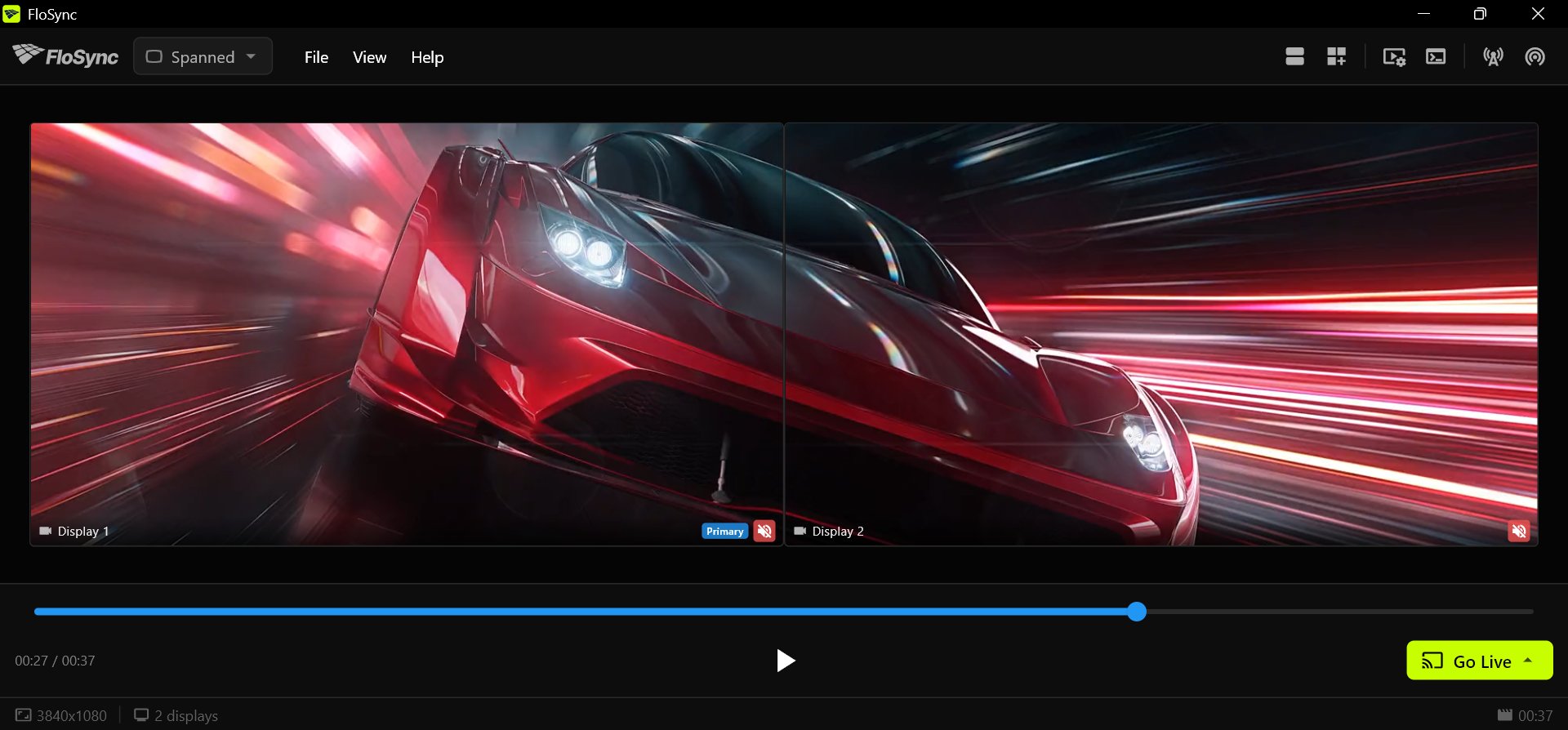 PC 1 in Spanned, before the wall is set.
Step 7: Set the wall's size on PC 1
Global Canvas Extension adds virtual space around a computer's own screens, so its pair becomes one part of a larger canvas. You set it once, on PC 1, and the other computers copy the wall's size when they connect. The values in this step are for a pair the status bar shows as 3840x1080 at its left end. If yours shows another size (other screens, or a Mac with display scaling), use its width and height in place of 3840 and 1080.
On PC 1, click the Global Canvas Extension icon, set Top to 0, Right to 3840, Bottom to 1080 and Left to 0, then click Apply.
The Global Canvas Extension icon, on the right side of the toolbar.
PC 1's pair is the wall's top-left quarter, so the rest of the wall lies to its right (PC 2's pair, 3840 pixels wide) and below it (the bottom row, 1080 pixels tall). With eight 1080p screens, the whole wall is 7680 by 2160. Quick Adjustments, at the bottom of the dialog, sets the same values without typing: on its 1080p row, click +R twice and +B once.
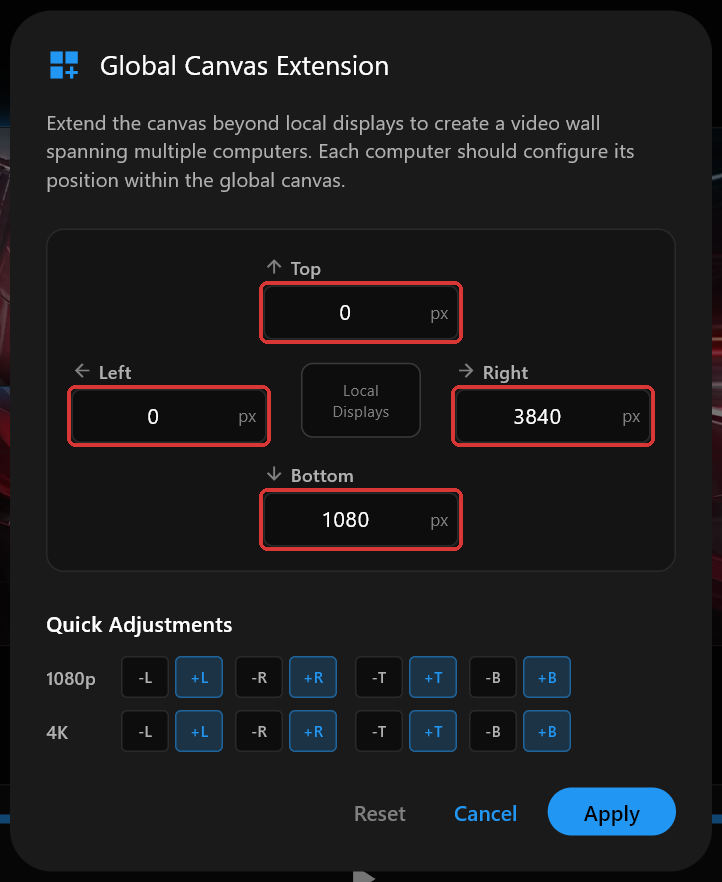 The dialog on PC 1, set to 0, 3840, 1080 and 0.
After Apply, the composer shows the whole wall, with PC 1's pair outlined in the top-left quarter.
Step 8: Make PC 1 the server
On PC 1, click the server icon in the toolbar.
The server icon, near the right end of the toolbar.
This turns on Network Sync with PC 1 as the server, which leads playback for the other three computers. Your operating system may ask whether to allow FloSync through its firewall. Allow it here, and on each of the other computers when it asks there.
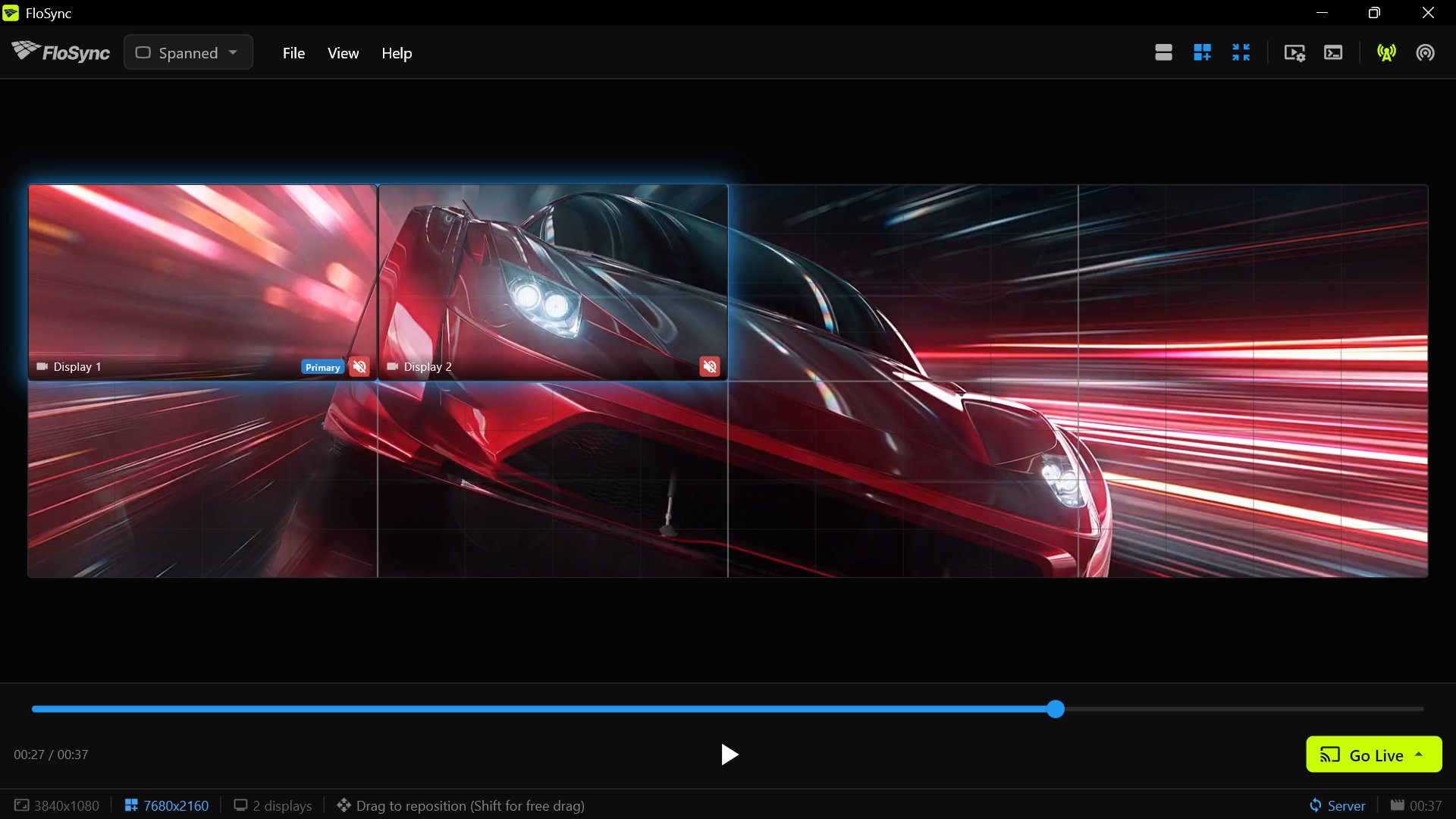 This computer is now the server, and clients can find it.
Step 9: Connect PCs 2, 3 and 4 to the server
On each of PCs 2, 3 and 4, click the client icon, click Import from server..., check Global canvas and Content files, then click your server's name.
The client icon, at the right end of the toolbar.
The list shows each server FloSync finds on your network by its computer name, so there is no address to type. The screenshots in this guide show a server named WALL-PC-1. Check Global canvas and Content files before you click the name, because the click connects straight away. Checking Content files checks Scenes as well.
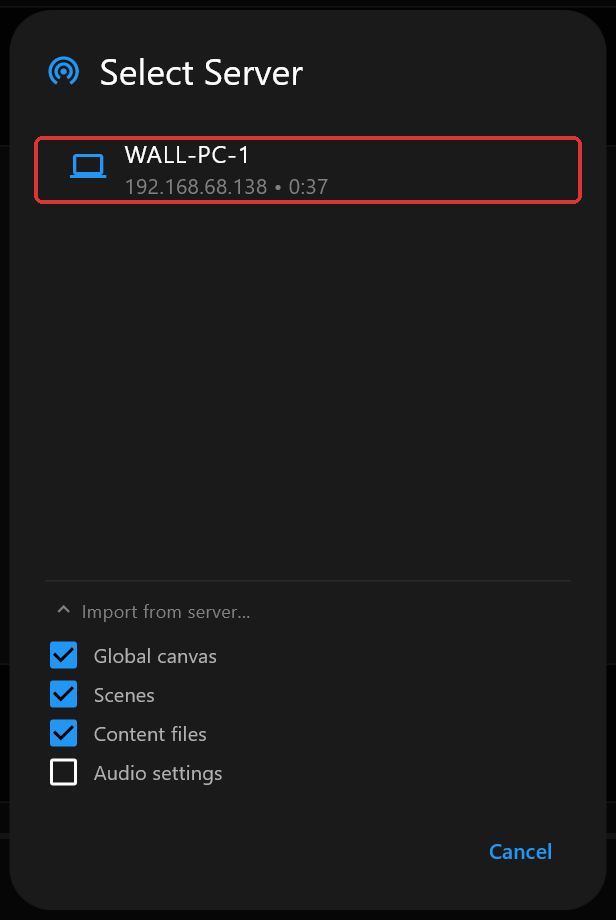 Global canvas, Scenes and Content files checked.
If your server isn't listed, check that both computers are on the same network and that each one allowed FloSync through its firewall.
Step 10: Check the import on each client
On each client, choose a permanent folder for the content files when FloSync asks, then wait until the car appears.
When the import finishes, check that the client icon is blue, the mode selector reads Spanned and the composer shows the whole wall. If the mode reads Independent, select Spanned. If you see only this computer's two screens, click Show Global Canvas, the zoom icon beside the Global Canvas Extension icon.
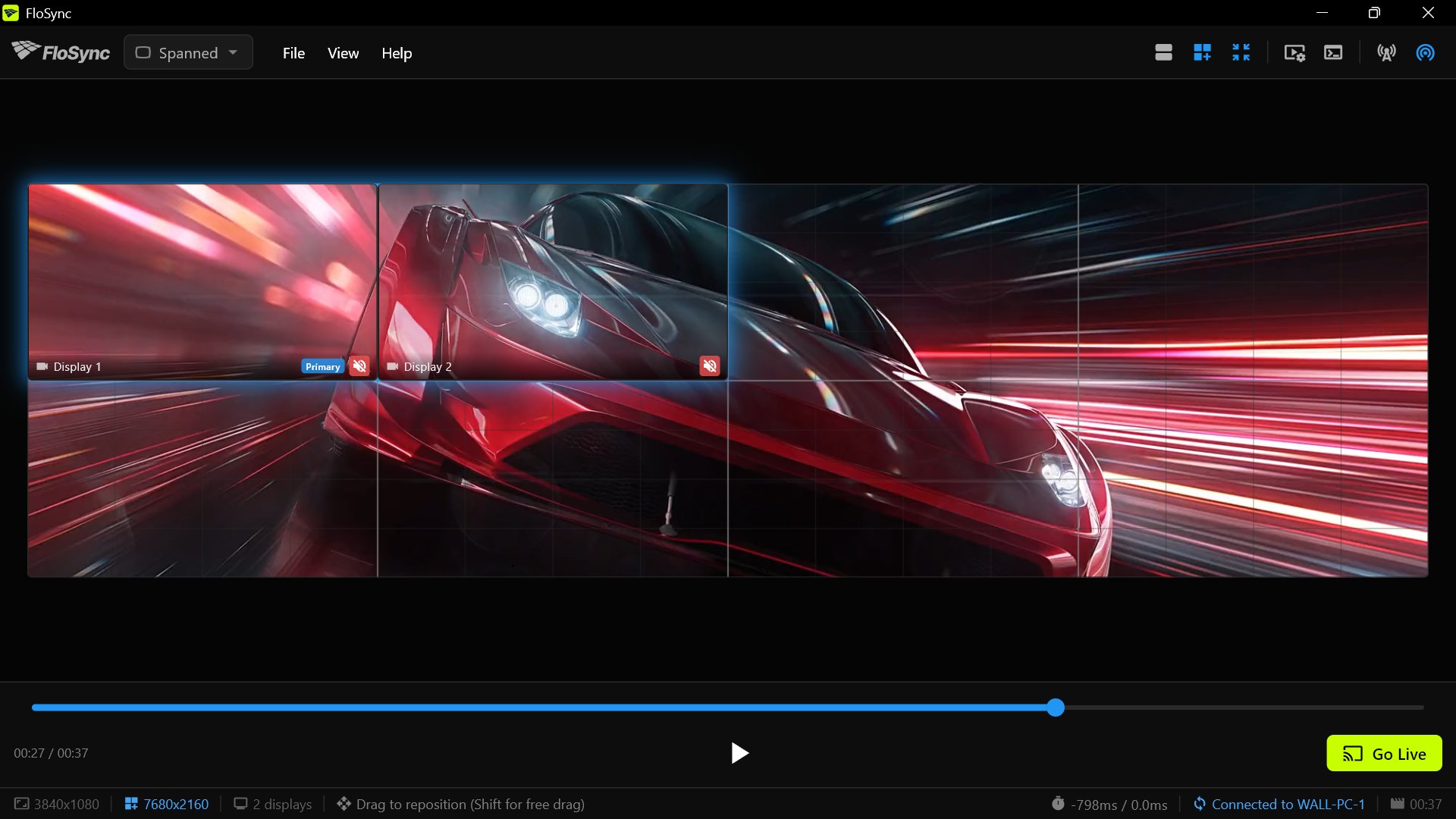 A client starts in the top-left quarter until you drag it.
Step 11: Drag each client's pair to its quarter
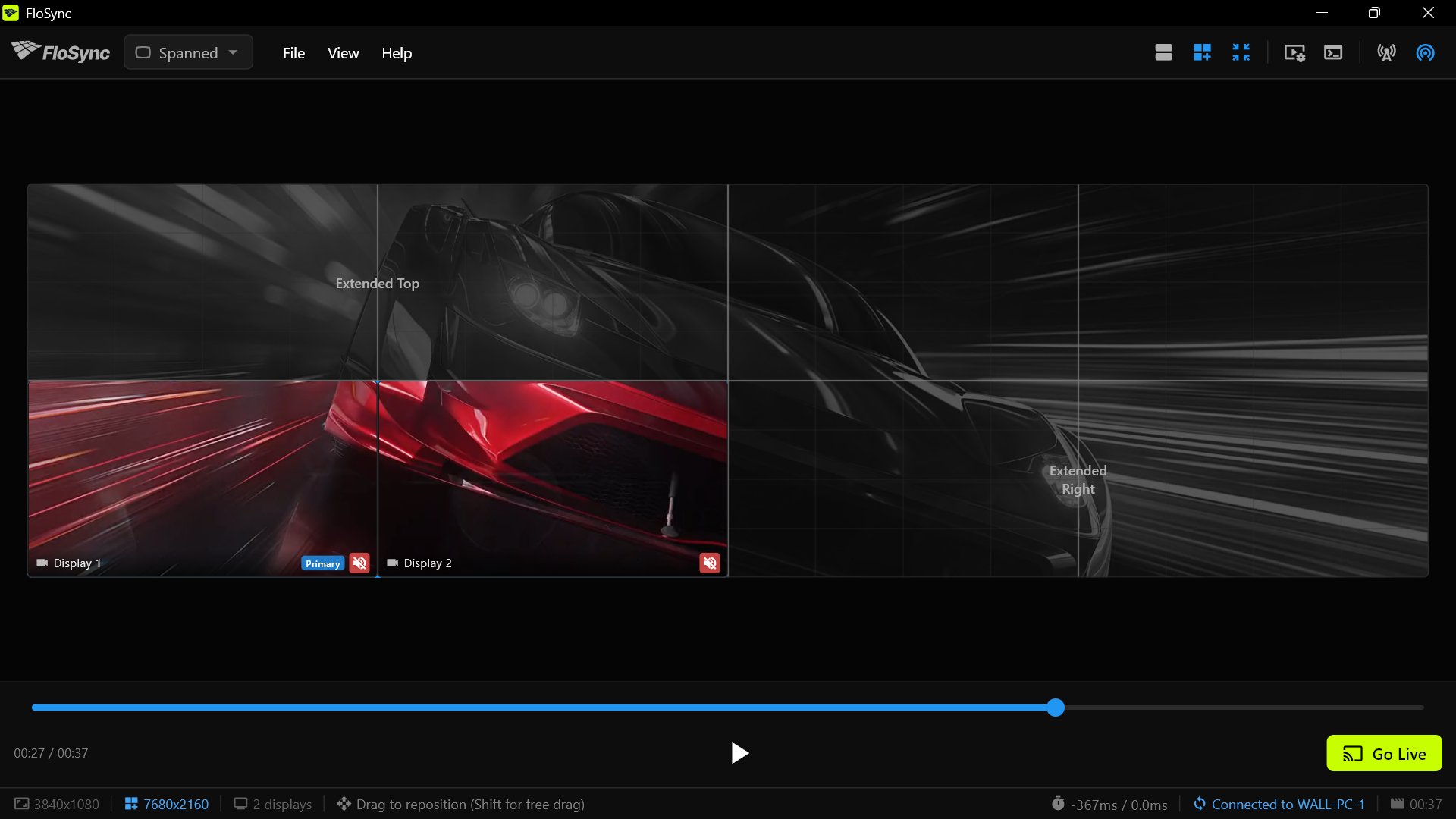
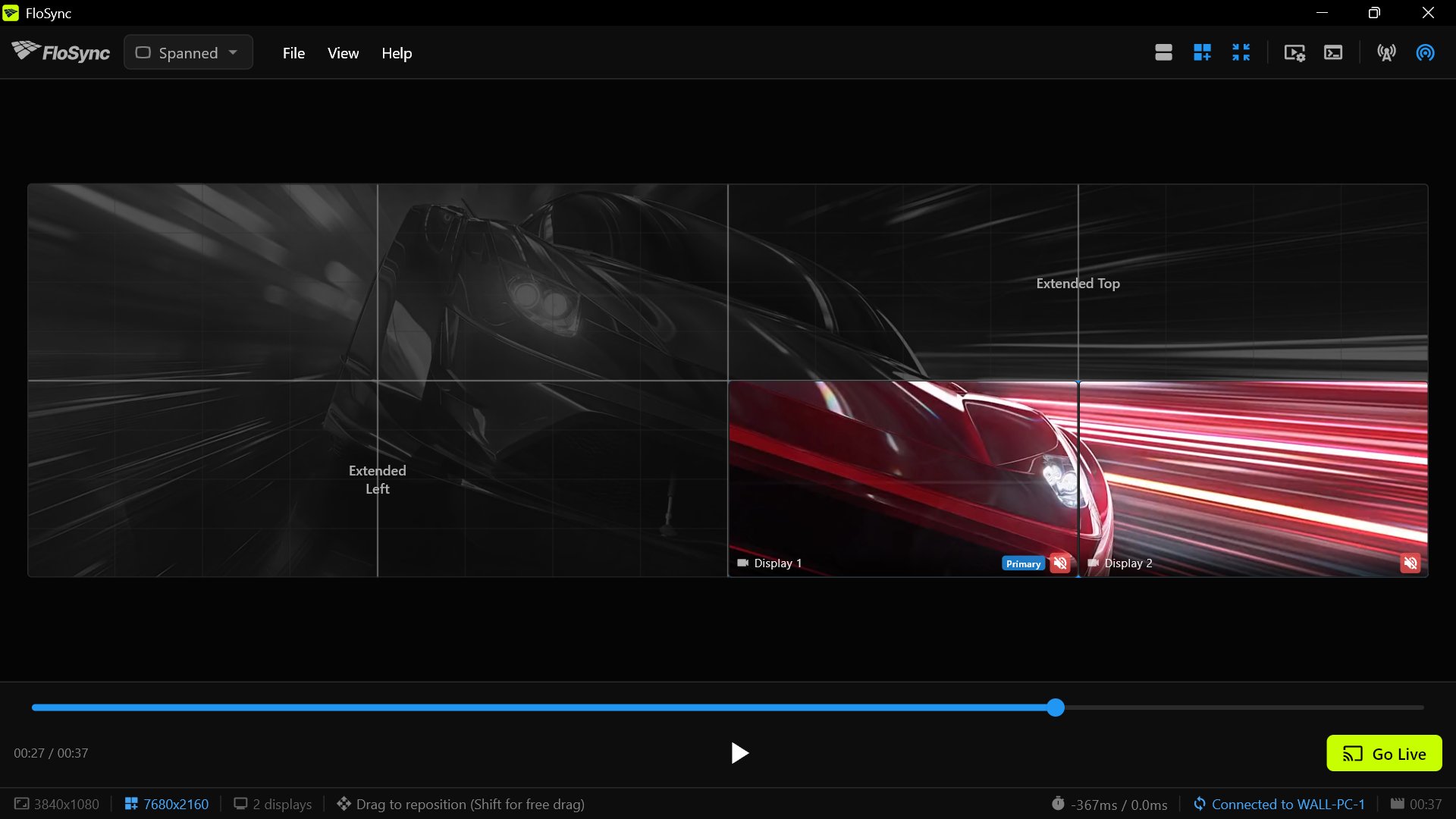
On each client, drag its two local screens in the whole-wall view to its quarter: top right on PC 2, bottom left on PC 3 and bottom right on PC 4.
While you hold the mouse button, only your two local screens stay in color. Check that they sit where your PC's screenshot below shows them, then let go.
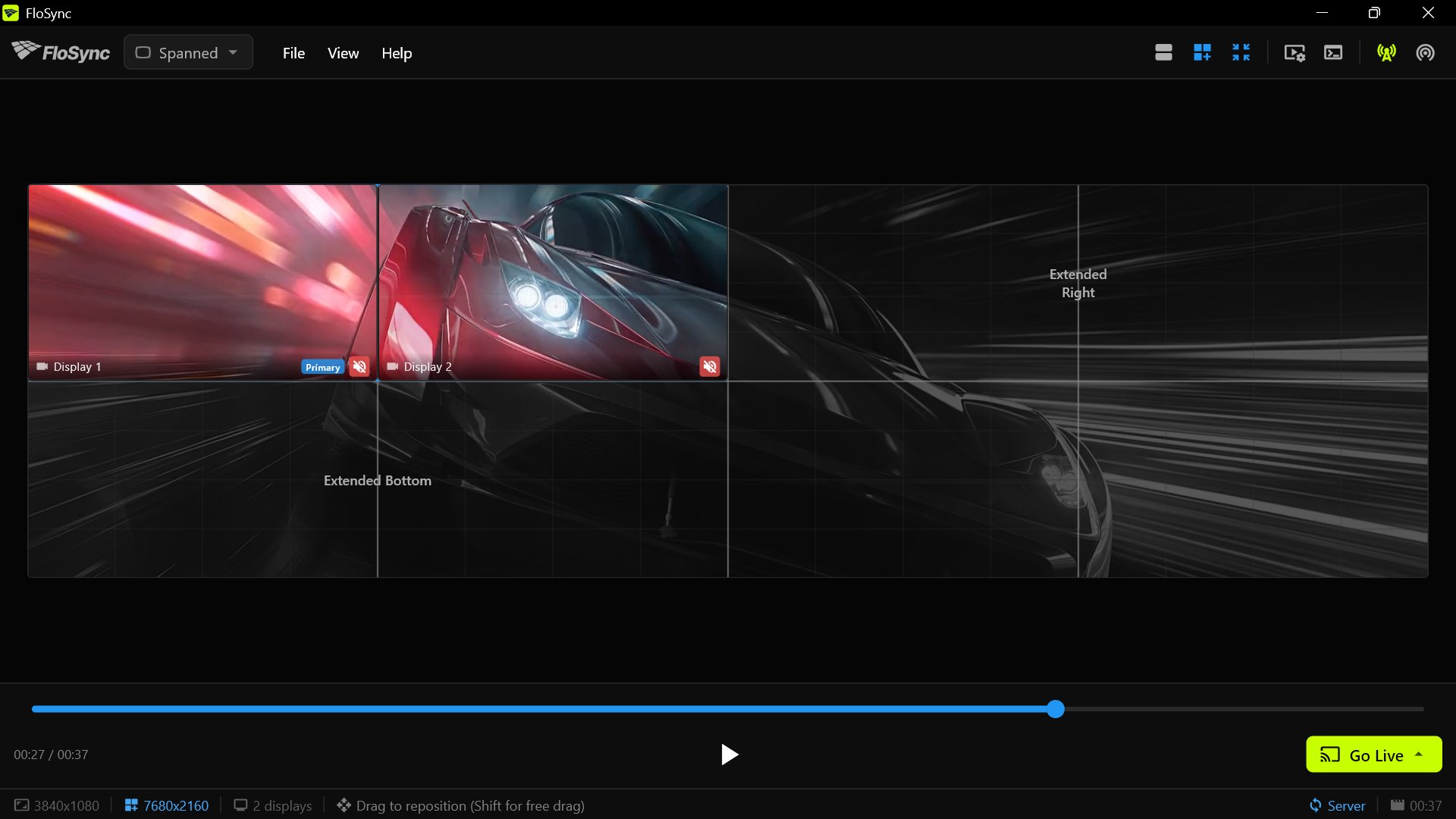
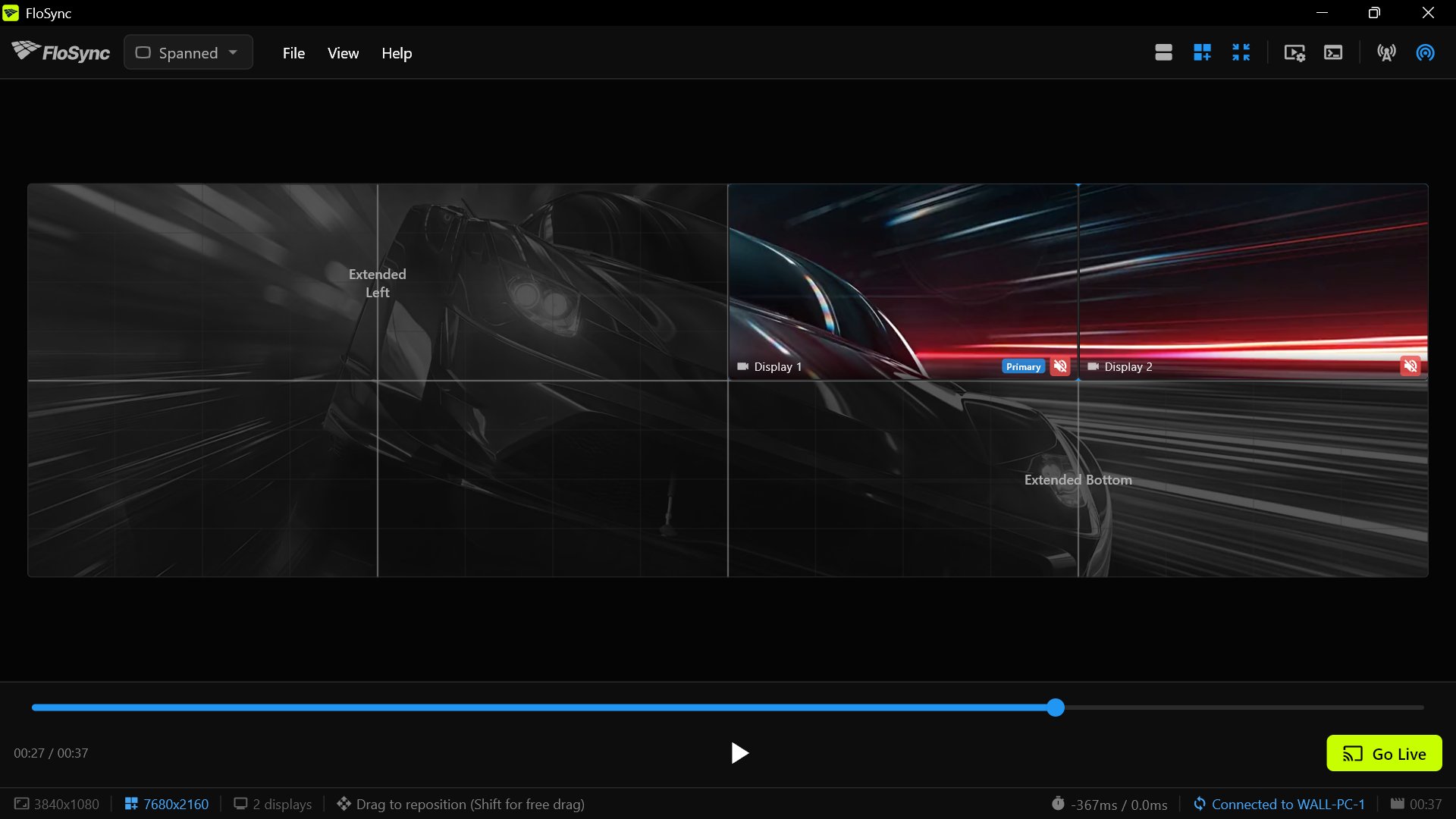
Step 12: Check the wall in the preview
Drag the timeline slider on PC 1 and check that the time readouts on PCs 2, 3 and 4 show the same point in the video.
Before you go live, dragging or clicking the timeline slider on the server moves the clients' previews with it, so you can check every computer's part of the video. Pressing Play on the server does not play them. If one preview stays put while the others move, check that computer's connection and that it imported the video in Step 10.
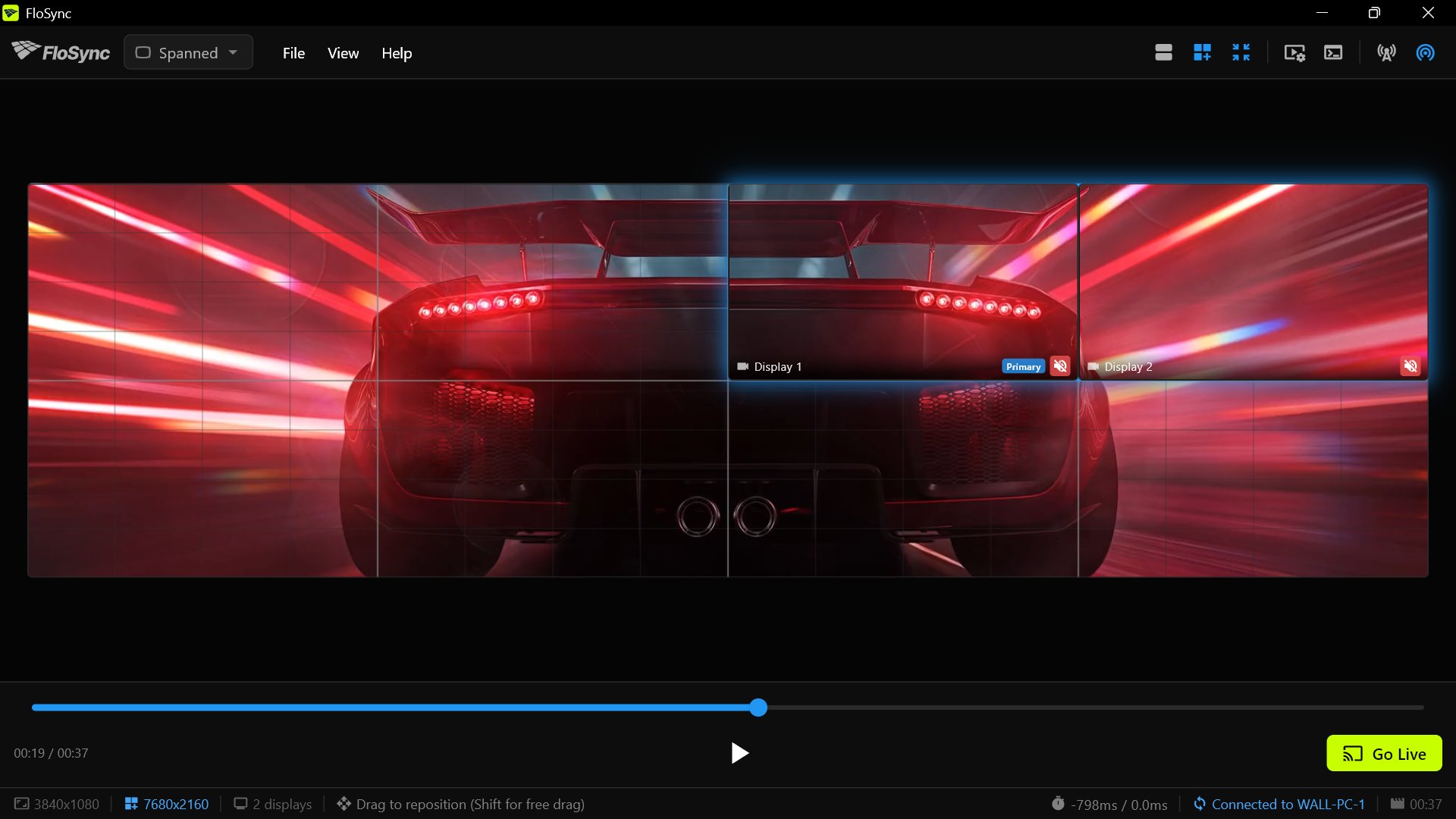 PC 2's time readout should match the server's.
Step 13: Go Live, server first
FloSync starts with sound off. For sound, turn it on for the server only: click the red speaker icon beside a display name, and both turn green. Sound from more than one computer echoes, because the ear catches timing differences the eye can't.
On PC 1, click Go Live and choose Go Live (Current), then click Go Live on PCs 2, 3 and 4.
The Go Live button, at the bottom right of the composer window.
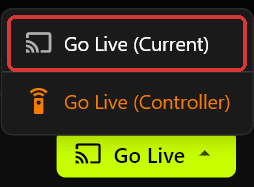 The Go Live menu on PC 1.
Clicking Go Live starts the video playing full screen on that computer's two screens. On PCs 2, 3 and 4, Go Live is a single button. A client that goes live later than the server joins it at the same point in the video. Go Live (Controller) would leave PC 1's own screens out of the wall. Live playback has no controls; press ESC on a computer to stop it and return to the composer.
Step 14: Watch the finished wall
Stand back where a viewer would stand and watch the car cross from one computer's screens to the next.
The car should travel across all eight screens as one shot, with no pair ahead of or behind the others. If one pair runs behind, see the FAQ.
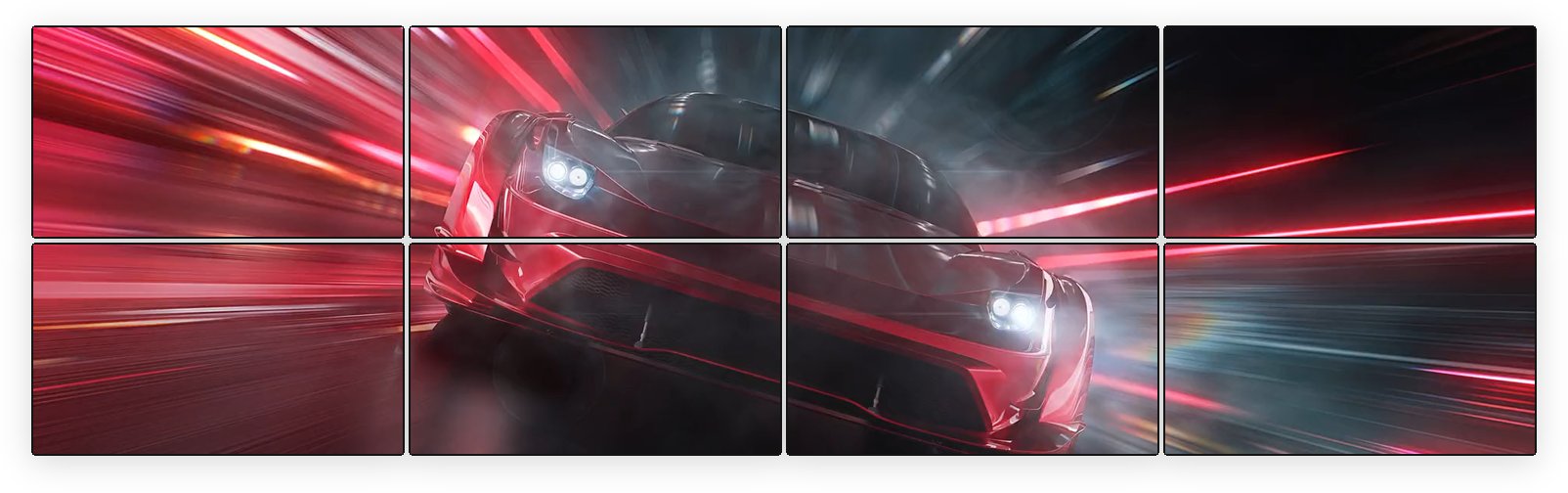 Each pair should show its own part of the same frame.
Wrapping up
Four computers make a real video wall, and the same steps work for more: add a computer, give it its part of the canvas, and it joins the wall. None of it needs a video wall controller, only ordinary PCs and FloSync, which is free.
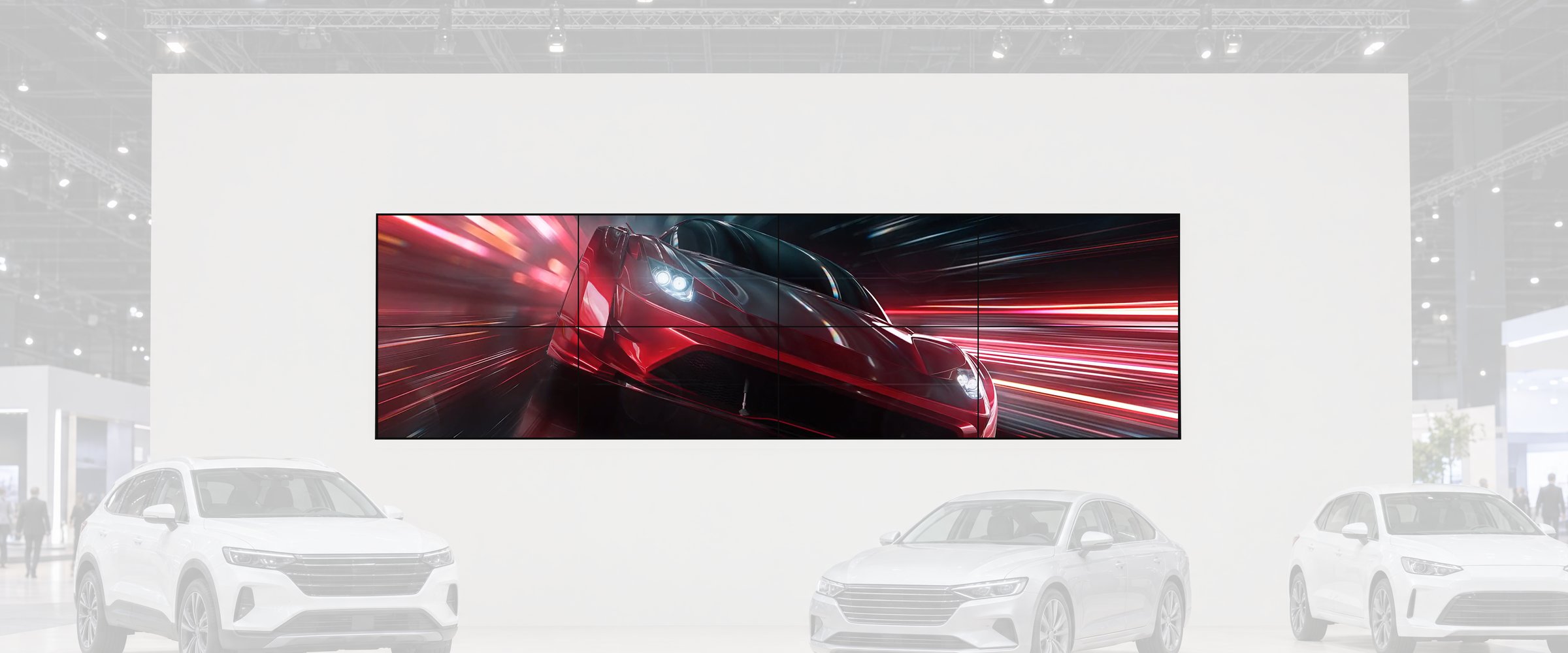 The same eight-screen wall on an auto show stand.
For a wall that runs every day, turn on Launch FloSync at login and set Auto Go Live to Fullscreen on each computer, in the Startup section of Preferences. The FAQ below covers what comes back after a restart.
This is the third guide in a short how-to series on using FloSync. The first two use one computer: How to Span One Video Across Two Screens with FloSync and How to Build a Three-Screen Restaurant Menu That Changes by Time of Day.
Frequently asked questions
Would these same steps work for a different wall shape, like three computers and six screens in a single row?
Yes. The steps stay the same. What changes is the number of computers, which pair each one drives, PC 1's values in Step 7 and where each client drags its pair. In a single row of six 1080p screens, PC 1 sits at the left end with Right set to 7680 and the other sides at 0, and PC 2 and PC 3 drag their pairs to the middle and the right end of the row.
Can I mix Mac and Windows computers in the same video wall?
Yes, but a client on a different platform from PC 1 can't copy the wall's size. On that client, leave Global canvas unchecked in Step 9, skip the drag in Step 11 and type its values in Global Canvas Extension instead. PC 2: Top 0, Right 0, Bottom 1080, Left 3840. PC 3: Top 1080, Right 3840, Bottom 0, Left 0. PC 4: Top 1080, Right 0, Bottom 0, Left 3840. If the status bar shows a size other than 3840x1080, adjust them as Step 7 describes.
What happens if one of the four computers crashes mid-show?
If a client fails, the server and the other clients keep playing. Reopen FloSync on that computer and it reconnects to the server by itself; click Go Live and it starts at the server's point in the video. If the server fails, the clients reconnect by themselves once FloSync is running on the server again.
Does the video wall come back by itself after a restart?
Yes, if Launch FloSync at login is turned on in the Startup section of Preferences (FloSync > Preferences... on a Mac, File > Settings... on Windows). FloSync then opens when someone signs in; if nobody will be there, set the computer to sign in automatically. With Auto Go Live set to Fullscreen as well, FloSync also goes live. It reopens with the same content and the same server or client role, as long as the video is still in the folder it was loaded from.
What do I do if one computer's picture runs slightly behind the others?
Check that computer's network connection first: a cable instead of Wi-Fi, or a different switch port. Then check whether the computer is busy with other work. During live playback a client can also show a sync quality indicator in the status bar, from Excellent to Poor. It shows how steady that computer's playback has been, not what is causing the problem. A video of your own that stutters in live playback may need converting first; the Transcoding page in FloSync's docs shows how.
About the author

Daniel Palka
Creator of FloSync
Daniel has been building multi-screen video software since 2007, when FloSync began as a student project called ArraySync.
Our StoryRelated articles
-
How Many Screens Can One Computer Drive?
FloSync sets no screen limit. Your ceiling is your computer's display outputs and the video you play. A ten-minute test finds your own number.
-
Video Wall Setup: One Computer or Several?
When one computer can run your video wall, when to add more, and when a hardware processor is the better buy. The FloSync app is free.
-
Video Wall Software for Trade Shows and Live Events
What to look for in video wall software when you are setting up in an unfamiliar venue with limited time: sync, setup speed, scheduling and hardware.